
Uncategorized
Dime Dime Baby AI: Photo Dance Guide
Learn how to create a Dime Dime Baby AI-style video from a photo with a clear prompt, vertical framing, model-aware settings, and a practical review checklist.
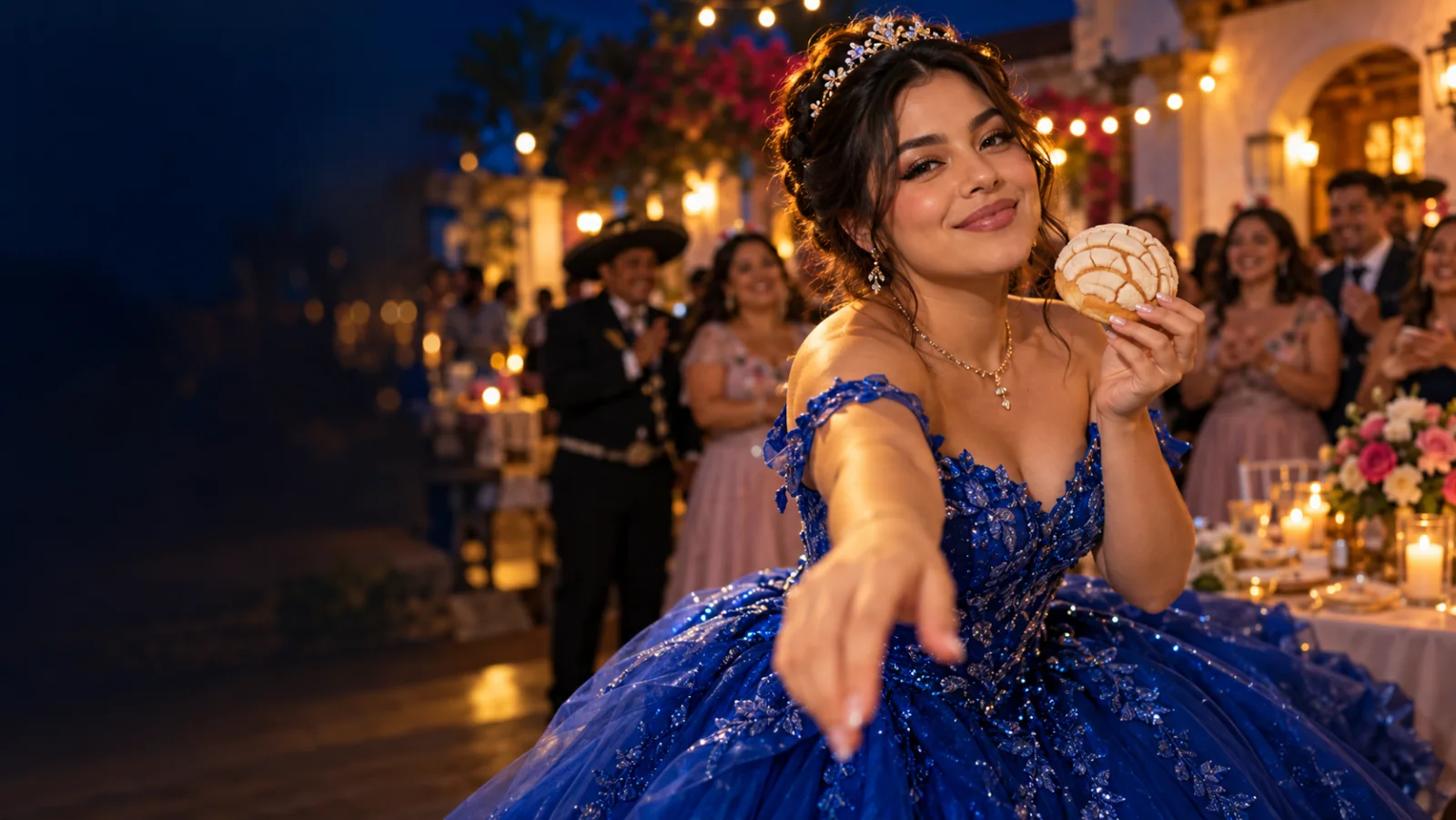
Start at the Meme Video Maker homepage if you are new to the site. A Dime Dime Baby AI video is usually understood as a short, playful dance-style clip made from a still photo. The phrase describes a trend-shaped result, not one universal AI model or fixed set of settings. This guide shows how to plan a similar photo-to-video edit with Meme Video Maker, write a motion prompt that is easier to control, and review the result before sharing. There is no dedicated Dime Dime Baby preset on this site, so the steps use the general image-to-video workspace.
The most useful starting point is simple: one photo you have permission to use, one clear movement, a vertical composition, and a short first draft. Treat the model output as footage to review and edit. It may not reproduce a specific dance, face, song, or frame sequence exactly.
What does Dime Dime Baby AI mean?
People use “Dime Dime Baby AI” to look for AI-assisted dance clips, photo animations, prompts, and tools connected with a recognizable short-form meme style. In practice, search results point to different websites and workflows. Some let a visitor pick a preset or upload a photo; others describe a broader image-to-video process. The name alone does not identify a shared model, official specification, or guaranteed output.
It helps to separate three things that can be mixed together in a search: the visual idea (a person or character dancing), the generation method (animating a still image), and the edit around it (music, captions, timing, and platform effects). An AI model may produce the moving picture, while a separate editor adds the exact beat, text, or licensed sound. Keeping those jobs separate makes the process easier to steer and the finished clip easier to correct.
This page uses “Dime Dime Baby AI video” as a practical search phrase for a photo-to-dance workflow. It does not claim that every clip tagged with the phrase uses the same service, soundtrack, duration, choreography, or generation settings. When a particular tool publishes its own limits or features, treat those as claims about that tool and check its live interface before relying on them.
Is Dime Dime Baby AI one model or one official app?
No single setting should be assumed from the keyword. A branded generator may provide its own templates, presets, length choices, or audio options; a general video model may expose different controls. Those details can change by provider, account, and model version. A preset that exists on one website does not automatically exist in Meme Video Maker.
Meme Video Maker currently provides a general image-to-video workflow, not a named Dime Dime Baby template. You can describe a dance-inspired action and choose from the models and settings shown in the workspace. That is useful for creating an original interpretation, but it is not a promise of exact choreography or a frame-for-frame copy of an existing meme. If you want to experiment, start in AI dance video from photo for the broader use case or open the image-to-video workspace to check the options currently available.
A sound is also a separate choice. An image-to-video model may generate silent footage or offer audio features, depending on the model. Do not assume that the generation tool will supply a particular song. Add audio later in an editor or a platform library where you have the necessary rights.
Before you start: choose a photo you can use
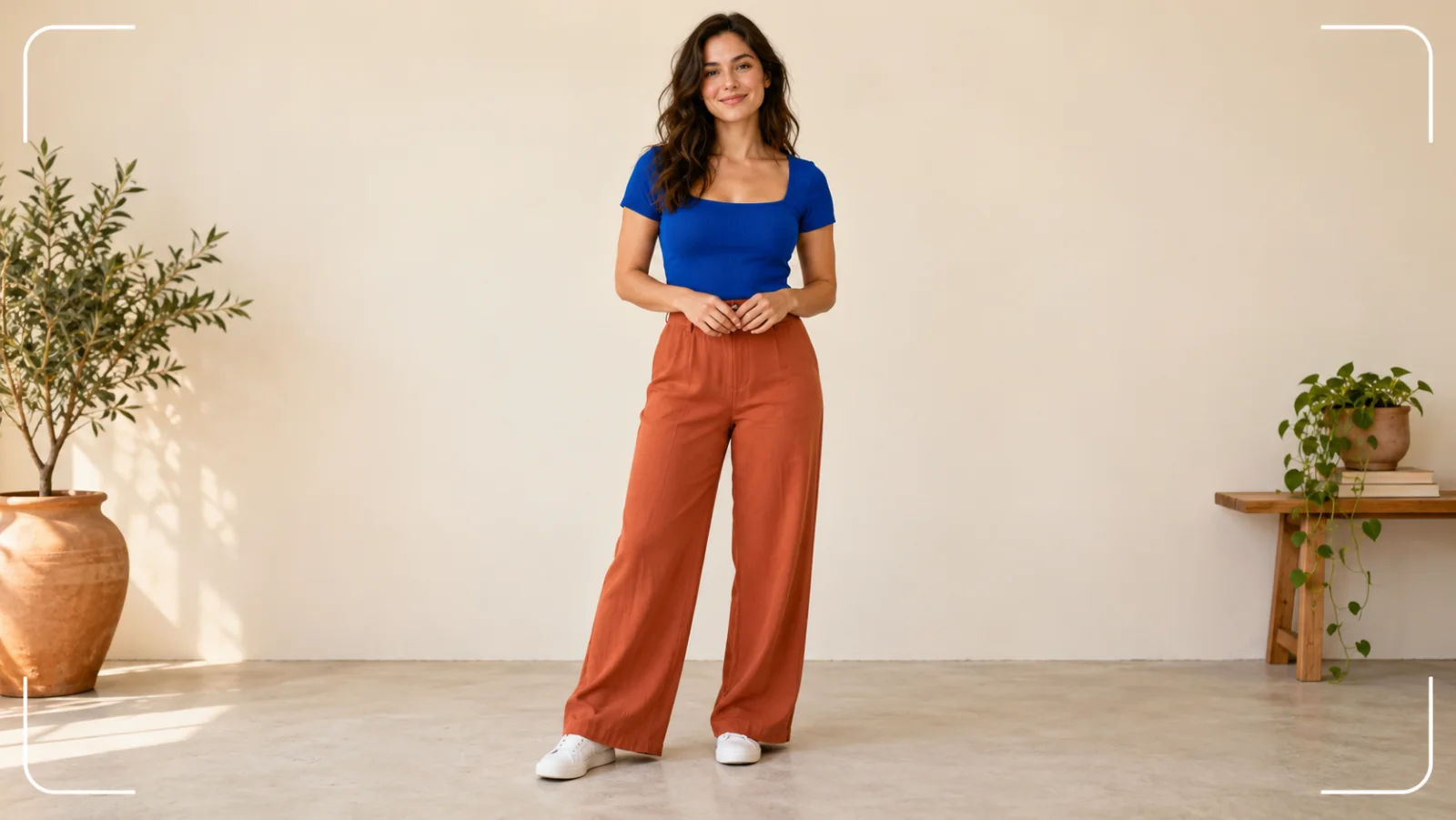
A good reference image makes the first attempt easier to judge. Choose an image with one clearly visible subject, a readable face, enough space around the body, and lighting that separates the person from the background. A full-body or three-quarter view gives a dance animation room for shoulders, arms, and legs. A tight portrait may work for a head-and-shoulder groove, but it cannot show footwork that is outside the frame.
Use a photo you own, an original illustration, a properly licensed image, or an image you have permission to upload and transform. If the subject is another person, obtain permission for the likeness and intended use. Avoid private photos, children’s images, or pictures that reveal sensitive locations unless you have clear authorization and a legitimate reason to use them.
Before uploading, inspect the crop at the destination ratio. The generator may enlarge, extend, or reinterpret the frame to fit a vertical canvas. Leave headroom and side space if the arms need to move. Remove unrelated text and logos from the source when possible; models can distort them, and a clean background is easier to review.
Plan the motion before writing a prompt
A short dance idea becomes easier to describe when you divide it into visible beats. Choose one action that fits the framing: a gentle shoulder bounce, a two-step shift, a turn, or a small hand movement. If the source only shows a face and shoulders, do not ask for a full-body routine. If the full body is visible, keep the movement modest enough for the model to preserve the person’s proportions.
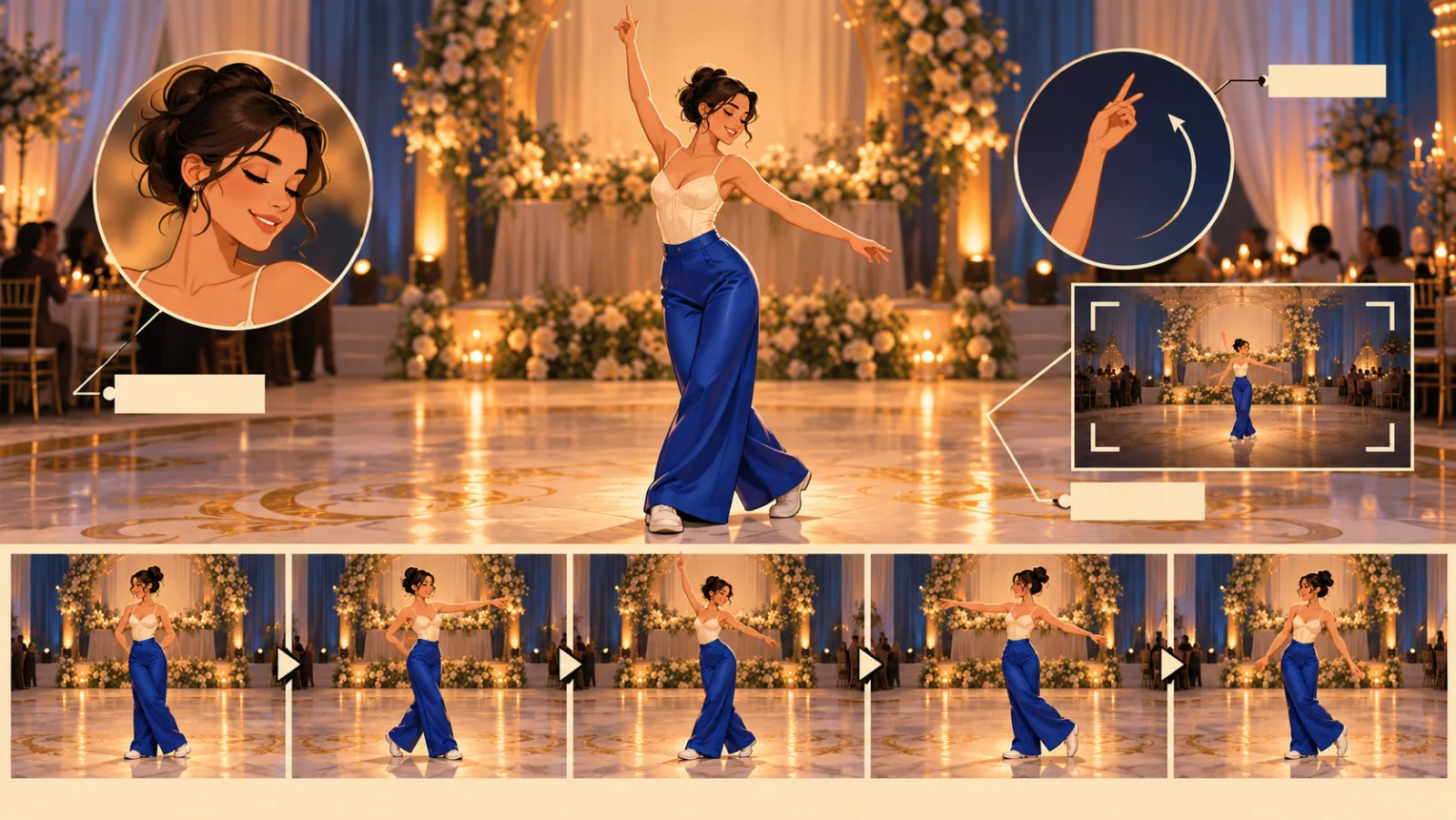
A useful beat plan is three parts: start pose, central movement, and ending pose. Keep the camera steady for the first attempt. You can add camera motion after you know the subject and action remain readable. This avoids asking the model to solve several hard changes—dance, camera orbit, scene cut, lighting transformation, and costume swap—in one short clip.
START: subject faces the camera, relaxed posture
ACTION: two small shoulder bounces, then a gentle side step
END: subject returns to a centered pose and smiles
CAMERA: steady medium-full shot, no cut
Write down the elements you want to keep stable too: face, hairstyle, clothing, number of people, and background. A model can reinterpret even a good reference as it creates motion, so a consistency note is guidance rather than a lock. Keep the action concrete and observable; “dance with energy” is vague, while “two shoulder bounces and one side step” gives the model fewer ways to misunderstand the request.
Step-by-step: make a Dime Dime Baby AI-style video
- Open the image-to-video workflow. Start at the photo-to-meme video guide, then open the image-to-video workspace. The route can prefill a model and format, but the controls shown in the live workspace are the source of truth.
- Upload the selected reference. Use a photo or illustration that you are allowed to use. Check that the person’s face and the body area needed for the movement are visible in the chosen crop.
- Set the canvas and first draft length. For a short-form vertical post, try a 9:16 composition if the selected model supports it. Start with the shortest useful duration available; a brief clip is easier to review and refine than a long sequence.
- Describe one movement and a stable shot. Name the starting pose, two or three motion beats, the ending pose, and camera framing. Ask for a single continuous shot while you test subject consistency.
- Check the displayed model and estimate. Models differ in reference support, length, resolution, audio, and credit use. Read the current selection and estimate in the workspace before generating; this guide does not promise a fixed cost or feature set.
- Generate only after the review. Watch the whole result, then inspect the opening and ending frames, face, hands, limbs, clothing, and background. If one part fails, change one prompt variable and try again only if you want another draft.
- Finish the edit outside the generation step. Trim the beat, add readable captions, and select music through a source you are allowed to use. Preview the export on a phone-sized screen before posting.
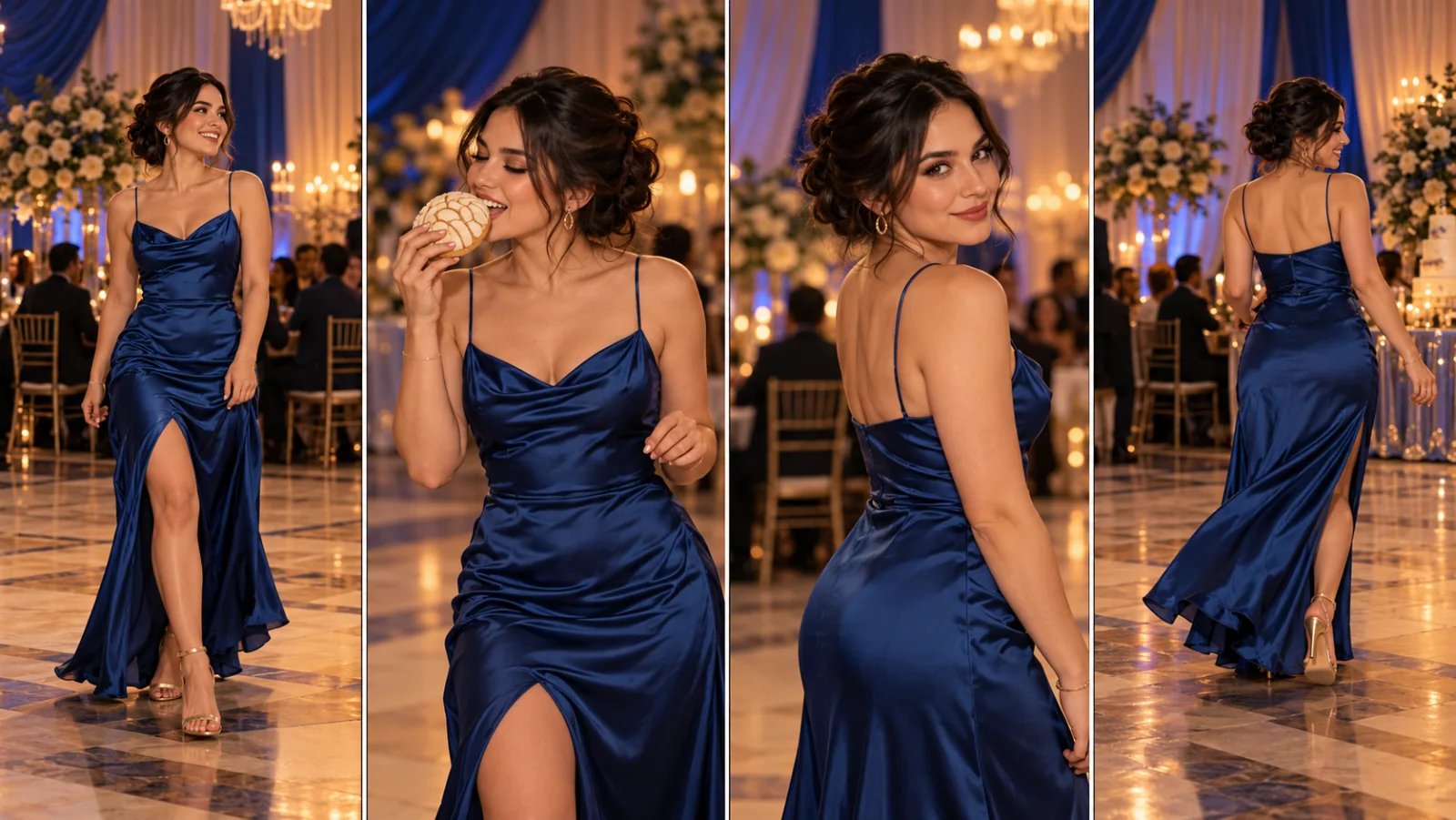
Watch the illustrative workflow
The short clip below is a designed workflow illustration. It is not a real model output, a product-screen recording, or proof that a specific prompt will produce a matching dance. Use it to review the order of the planning decisions, then make your own draft in the workspace.
Build a prompt that leaves the model room to move
Use a compact prompt in this order: subject and reference, one action, framing, background, and consistency instructions. Avoid repeating the same adjective or piling up unrelated scene changes. A clear prompt gives the model a visual task, while an editor can handle precise timing, captions, and music after generation.
Animate the uploaded reference as one original, playful dance moment. Preserve the subject's recognizable face, hairstyle, clothing, and the number of people. Begin facing the camera, add two gentle shoulder bounces and one small side step, then return to the starting position. Keep a steady medium-full vertical shot with the same simple background and soft even light. One continuous take, natural body proportions, no cut, no added text, no logos.
If your idea needs more movement, add one beat at a time. For example, you might replace the side step with a small turn, or use a closer crop for a head-and-shoulder groove. Do not ask for both a full turn and detailed hand choreography on the first pass if the reference is hard to read. The less the scene changes, the easier it is to tell whether a prompt edit helped.
A reusable prompt template
Animate [the uploaded reference / original character] in [one setting].
Start: [clear starting pose].
Movement: [one to three visible beats in order].
End: [simple ending pose].
Camera: [vertical or landscape framing], [steady or one modest move], one continuous shot.
Keep: [face, hairstyle, clothing, subject count, background].
Avoid: [cuts, extra people, unreadable text, unwanted props].
Treat “keep” and “avoid” as best-effort instructions, not guarantees. A model can still alter a face, add an object, or miss a beat. Review the render and refine the prompt based on what actually happened rather than assuming that adding more adjectives will fix it.
Optional negative constraints
If the selected model supports a separate negative-prompt field, use it for a short list of specific failure modes. If there is no such field, include only the most important constraints in the main prompt. A negative list cannot force perfect anatomy or preserve every pixel.
No scene cut, no camera orbit, no extra people, no extra fingers, no duplicated limbs, no new outfit, no text, no watermark.
Choose a vertical format that survives the crop
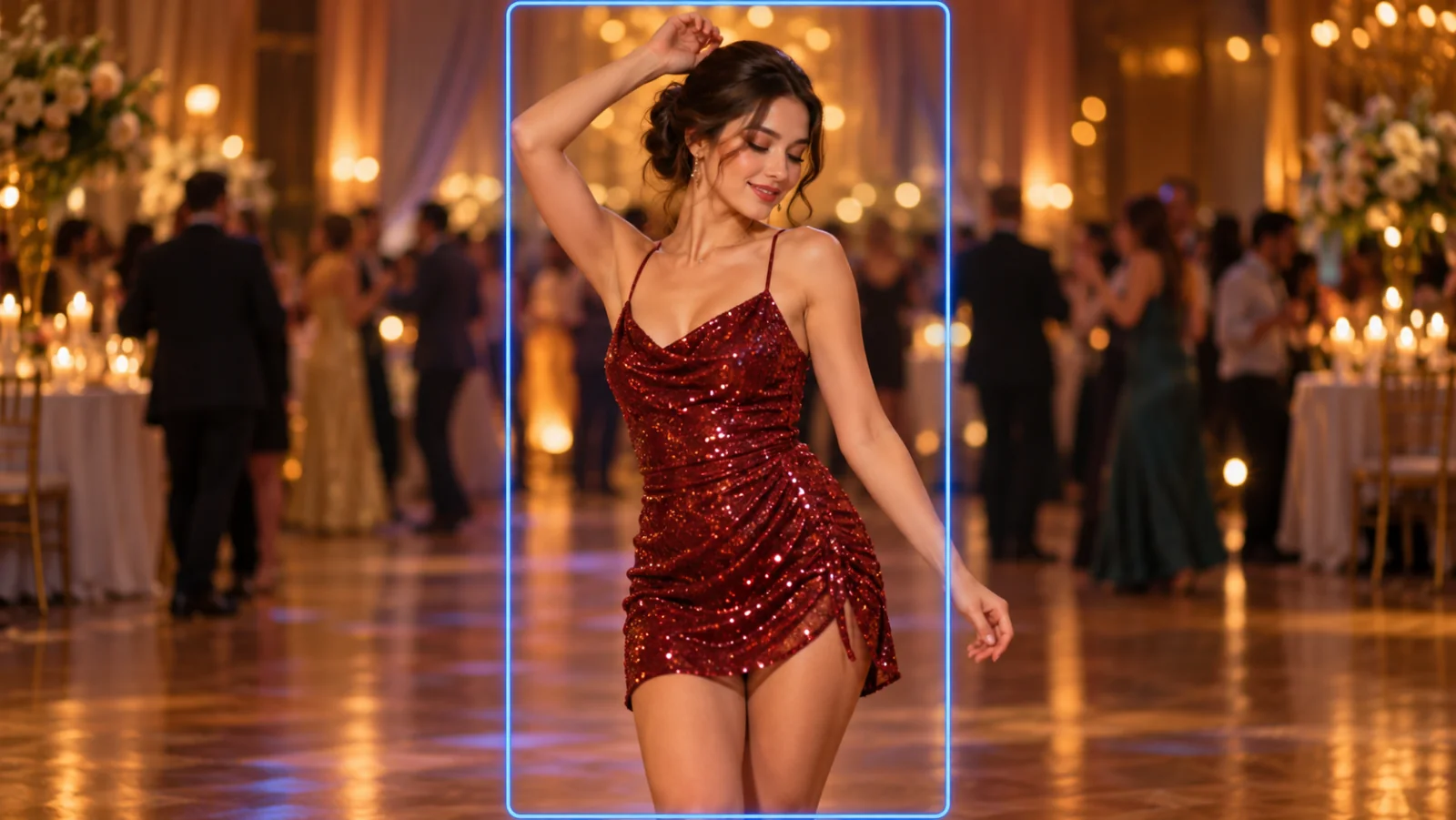
A 9:16 frame is a practical starting point for many short-form feeds, but it is not mandatory for every destination or every model. Confirm that the selected workflow supports the ratio you want. If the source image is horizontal, decide what matters most before you crop: face, torso, or visible footwork. You cannot keep every edge of a wide photograph while also filling a vertical screen without some crop or background extension.
Keep the face and main movement inside a central safe area. Leave extra space above the head and at the sides of moving arms. If the platform adds interface controls or captions, keep important visual details away from those overlay zones. A simple background often helps the person remain readable after compression.
Do not assume every model produces the same duration, output size, audio, or aspect-ratio controls. These values belong to the selected model and may change. The Meme Video Maker pricing page explains the site’s current credit information; always read the estimate displayed for your selected model before you start a generation.
Keep the person and the movement recognizable
Image-to-video systems infer new frames from a starting image and a text description. A head turn, fast arm movement, camera motion, or changing light can make facial features or clothing drift. Treat consistency as something to test, not a switch that guarantees identity preservation.
When a face changes, first reduce motion and camera movement. When hands or limbs warp, simplify the gesture and keep the body within frame. When a background changes, describe one unchanged setting and ask for one continuous take. When the model adds another person, explicitly state “one subject only” and check that the uploaded image itself contains one clearly separated person.
A practical refinement loop changes one variable at a time:
Draft A: two shoulder bounces + side step, steady camera
Draft B: same prompt, but remove the side step
Draft C: same action as B, but use a closer crop
Compare: face stability, action readability, hands, opening and ending frames
Do not keep rerunning without a reason. Save the prompt and note the defect you are trying to fix. If a short, simplified version is still unstable, use an editor to cut around the bad frames or create a different source image. For other starting ideas, browse the AI meme generator or the site’s video templates.
Review the whole clip before you share it
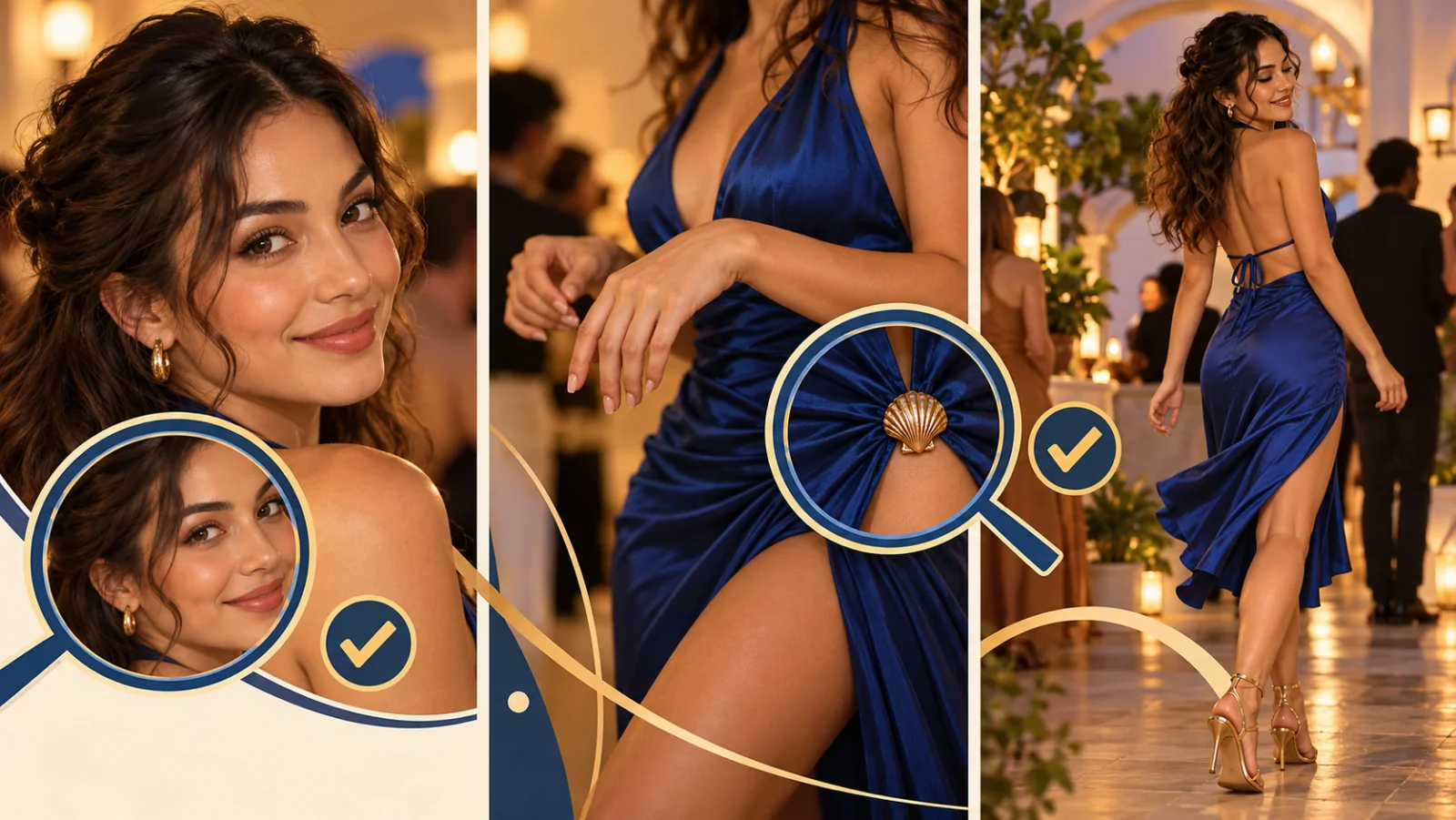
Do one pass at normal speed to see whether the idea reads. Then pause on the opening and ending frames and inspect the face, hands, legs, clothing, background, and any accidental text. Check the crop on a small screen and watch at the actual playback speed where you plan to post. Compression can make soft details, flicker, or edge artifacts more obvious.
Use a short checklist:
- Does the clip contain the movement you asked for, in the right order?
- Does the subject remain recognizable throughout the motion?
- Are hands, legs, clothing edges, and the background plausible frame to frame?
- Is the crop comfortable, with room around the face and moving arms?
- Are there unintended logos, text, or visual artifacts?
- Are the source image, likeness, music, and added assets cleared for this use?
If the result is close, trim it to the strongest beat and add captions in a separate editor. If it is not close, simplify the movement or change the source crop before spending time on decorative effects. The goal is a clean, understandable short video, not a complicated prompt that the model cannot follow.
Add sound and captions during the edit
The visual generation and the final social edit are separate steps. If you want a specific meme sound or track, check the platform’s current audio library and use a sound you are allowed to include. Availability and usage rights can vary by country, account, and type of post. Do not rip audio from another creator’s clip or assume a generated soundtrack is licensed for every use.
Add exact wording in an editor after generation. Video models often render text inconsistently, so do not rely on them for a precise title, username, lyric, or call to action. Keep captions short, high contrast, and inside the platform-safe area. Watch the exported file with sound on and off to confirm the movement still makes sense without audio.
If the clip includes a recognizable person, label AI-assisted or fan-made work clearly when context could confuse viewers. Do not imply that a creator, artist, product, or rights holder endorsed the result unless you have permission to say so.
Troubleshoot common Dime Dime Baby AI video problems
The output does not look like the reference. Crop to one subject, choose an image with clear lighting, reduce the movement, and repeat the identity details once. More prompt text is not always better.
The dance is too large or too fast. Ask for a smaller action with fewer beats. “A restrained shoulder bounce” is easier to keep in frame than “an energetic full-body dance with spins and jumps.”
The face changes during a turn. Remove the turn for the first version, keep the camera still, and try a shorter shot. If the face still drifts, use a different source pose that already resembles the intended direction.
Hands or legs look distorted. Keep the gesture simple, avoid extreme foreshortening, and include the full limb in the source crop if it matters. Review several frames, not only the thumbnail.
The subject is cut off in a vertical export. Reframe the source before generation and leave margin around the body. If the subject cannot fit, choose a closer action that works inside the available frame.
The audio is missing or unexpected. Check whether the chosen model supports audio; do not assume it does. Add a licensed track in a separate editor if you need a particular sound.
The first attempt is weak. Identify one defect, change one input, and compare the next draft with the original. Use the photo-to-meme video guide for the broader workflow, or try the AI dance from photo page for another starting point. If your next idea is a transformation rather than a dance, the Nightwing AI photo-to-video guide shows a separate still-first workflow.
Frequently asked questions
What is Dime Dime Baby AI?
It is a search phrase used for AI-assisted dance-style clips, photo animations, prompts, and related tools. It does not identify one universal model or guarantee a single output style.
Can I make a Dime Dime Baby AI video from one photo?
A photo-to-video model can animate a still reference when the selected workflow supports image input. Results depend on the image, model, prompt, and current controls. This guide uses the general image-to-video workspace and does not promise exact choreography.
Does Meme Video Maker have a Dime Dime Baby preset?
No dedicated Dime Dime Baby preset is listed here. You can create an original dance-style interpretation with the general image-to-video tool and a motion prompt.
What photo should I upload?
Use a clear, well-lit image with one subject and enough room for the action and final crop. Upload only images, likenesses, and other material you have permission to use.
Which prompt works best for a Dime Dime Baby AI dance?
Start with one action, a steady camera, a simple setting, and a consistency note for the face, clothing, and subject count. The sample prompts above are starting points; adapt them to the source image and the model’s current controls.
Can the AI recreate the exact dance or song?
Do not assume it can. The model may interpret the movement differently, and audio support varies. Add a specific song only through a source where you have the right to use it.
Why does the person look different in some frames?
The model synthesizes new frames as the pose changes, so features can drift. A clearer reference, smaller movements, a steady camera, and a shorter clip can make review easier, but they do not guarantee a perfect match.
Is it okay to post an AI dance video of someone else?
Use the person’s likeness only with appropriate permission and follow the rules that apply to the source image, music, and platform. Avoid private or sensitive images and label AI-assisted work when needed for clarity.
Make an original version of the trend
The most reliable way to approach a Dime Dime Baby AI-style video is to start small: one permitted reference, one movement, one format, and a short first draft. Review the result, change one variable, and add sound and captions during the edit. For a broader meme workflow, visit the AI meme generator, explore AI dance from photo, or open the image-to-video workspace. Return to the Meme Video Maker homepage when you want to explore another workflow.