Uncategorized
Nightwing AI Guide: Photo-to-Video Workflow
Learn what Nightwing AI means and build a superhero-style transformation video with a clear photo, identity-aware prompt, controlled image-to-video motion, and a precise edit.
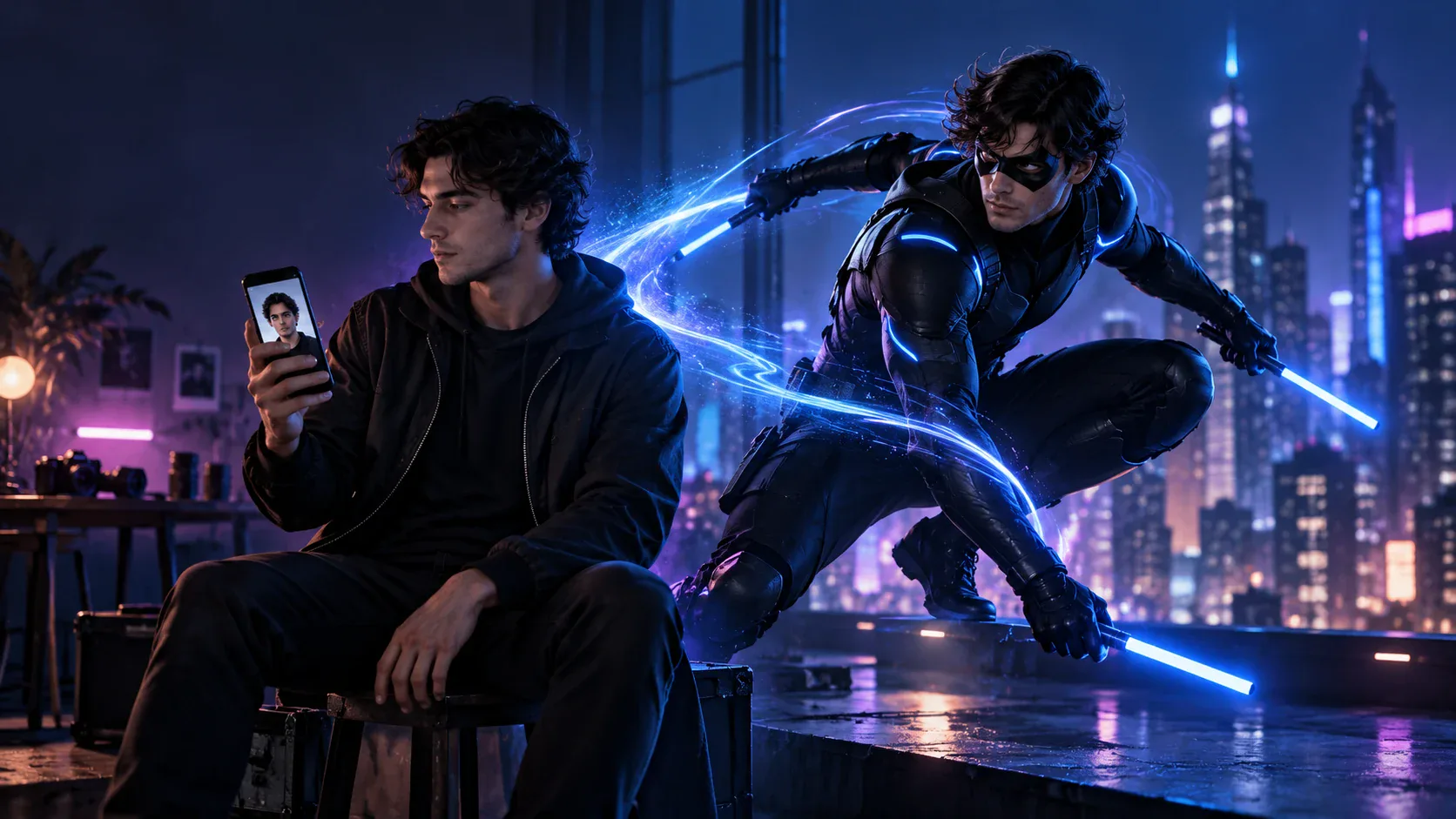
“Nightwing AI” is used for more than one kind of superhero-style image and video workflow. This guide shows a practical route: create an original Nightwing-inspired still from a photo, animate it with one controlled action, then edit and review the result. Start at Meme Video Maker or open the image-to-video workspace with Seedance 2.0 Mini selected when you are ready to try your own reference.
The reliable sequence is simple: choose a photo you can use, design the transformation as a still image, animate only after the face and outfit read well, and finish the timing in an editor. This keeps a single generation from having to invent a person, costume, motion, camera move, and scene change all at once.
What does “Nightwing AI” mean?
In current public examples, “Nightwing AI” is a loose label for AI-made portraits, transformations, dance edits, and short superhero clips. Some tutorials start with a photo and generate a costume image before adding motion. Some editing templates ask for two clips and apply a fixed transition. Those are related outcomes, but they are different production paths.
That distinction matters when you follow a tutorial. A template can supply a cut, timing, and framing; an image generator creates or restyles a still; a video model animates a still or follows reference media. The words “Nightwing AI” alone do not tell you which inputs a particular tool accepts. Check whether the instructions ask for a photo, a finished video, a motion reference, or multiple clips before you begin.
Nightwing is the DC identity of Dick Grayson, whose background includes acrobatics. This article uses that character reference to explain the search phrase, then demonstrates a Nightwing-inspired visual direction with original AI-created illustrations. The illustrations on this page are not official character art, screenshots, or generated results from Meme Video Maker.
Why search results show different Nightwing workflows
Public tutorials describe at least two repeatable routes. A generative route transforms a source photo into a superhero image and then animates that image. A template route starts with finished clips and applies an edit. One CapCut template record, for example, lists a two-clip input and a vertical 9:16 frame. That describes that template entry, not every Nightwing video or every model.
Tutorial pages also recommend different motion sources and editors. Some use a dance or action video as a motion reference; others make a still first and use image-to-video. One recent r/aivideos discussion asks what creators use to finish AI-generated films; replies mention different editors and compositing choices. It is a small community thread, not a representative survey or Nightwing-specific evidence.
For this guide, we use a workflow that remains useful when a named template is unavailable: make a still, check it, animate it, and edit it. Meme Video Maker exposes general image-to-image and image-to-video workspaces. The current model selector and its displayed settings control what inputs and output options are available, so follow the interface you see when you create.
Step-by-step: Create a Nightwing AI video
The first decision is whether you want a still portrait, a moving character shot, or a before-and-after edit. This guide targets the last two: an image transformation followed by a short clip that can be cut against an original photo or another clip.
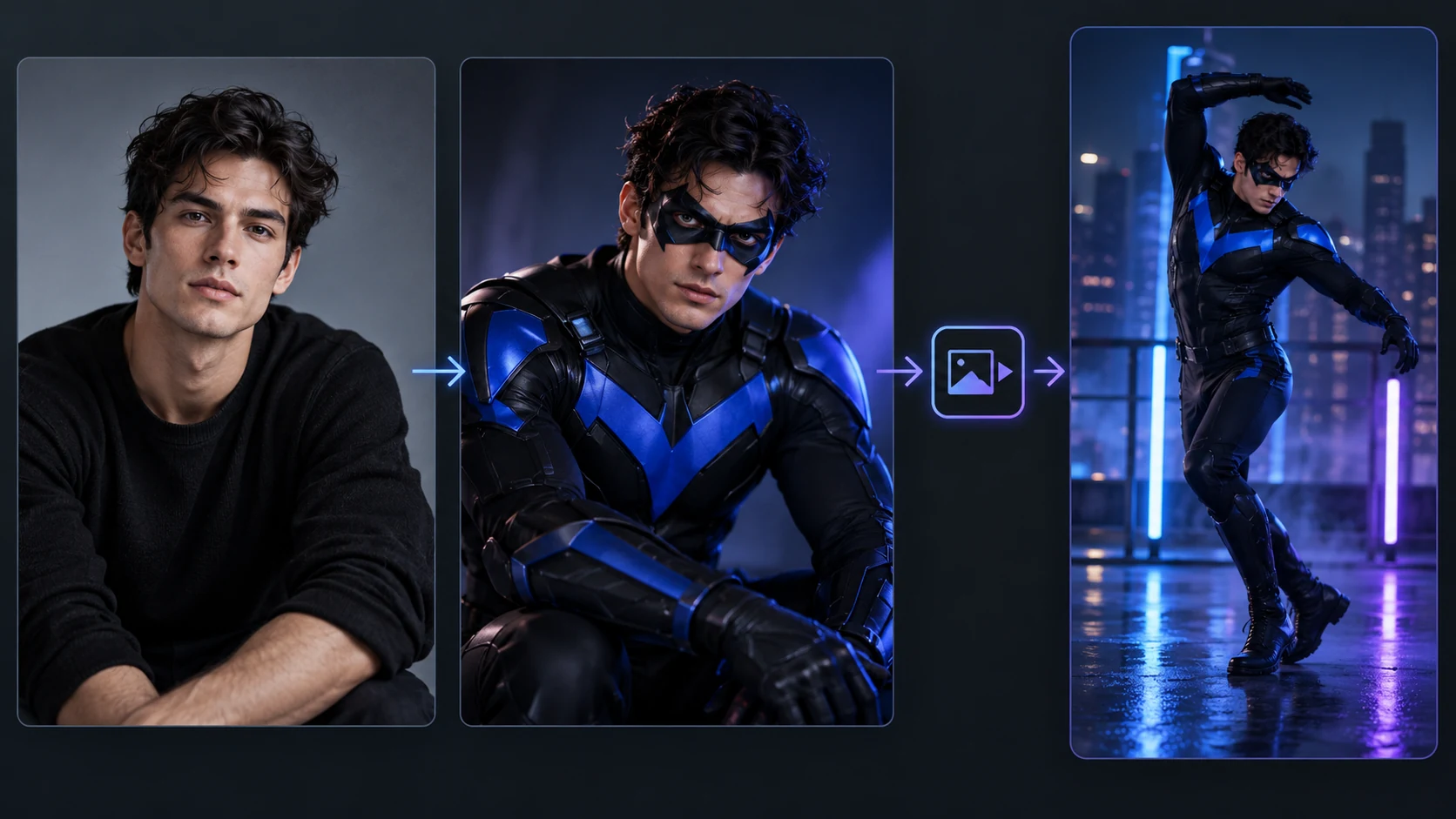
- Choose a clear source photo. Pick one sharp image and decide on the final crop.
- Create the transformation still. Use image-to-image for a stable identity and a simple costume direction.
- Review the still before motion. Revise it if the face, hands, or clothing are already wrong.
- Animate one simple action. Use image-to-video for one clear movement, a steady camera, and a short duration.
- Finish and review the edit. Watch the full clip, trim the cleanest beat, add captions in an editor, and check rights before sharing.
Do not spend time refining video motion until the still works. If the face is unreadable in a portrait, camera movement will not make it more consistent. If the costume prompt asks for five small accessories, animation gives the model more details that can flicker.
Choose a source photo that can survive a crop
Start with one person, a visible face, and enough light to read the eyes and hairline. A relaxed front-facing or three-quarter pose is a practical choice because the model can see both the face and the shoulder line. A clean background helps the new setting stand out, but a plain wall is not required.
Think about where the video will be watched before choosing a photo. A vertical crop gives a standing character more room; a close portrait gives the face more pixels but can cut off a chest emblem or hands. Keep important details near the center if you expect to crop again in an editor. Leave some space above the head and beside the shoulders for movement.
Avoid a group shot where the intended person is small, strong motion blur, heavy beauty filters, and photos with text across clothing. If you are using another person’s likeness, get permission before upload and before publication. For a public post, original artwork or a photo you have rights to use is the simplest source.
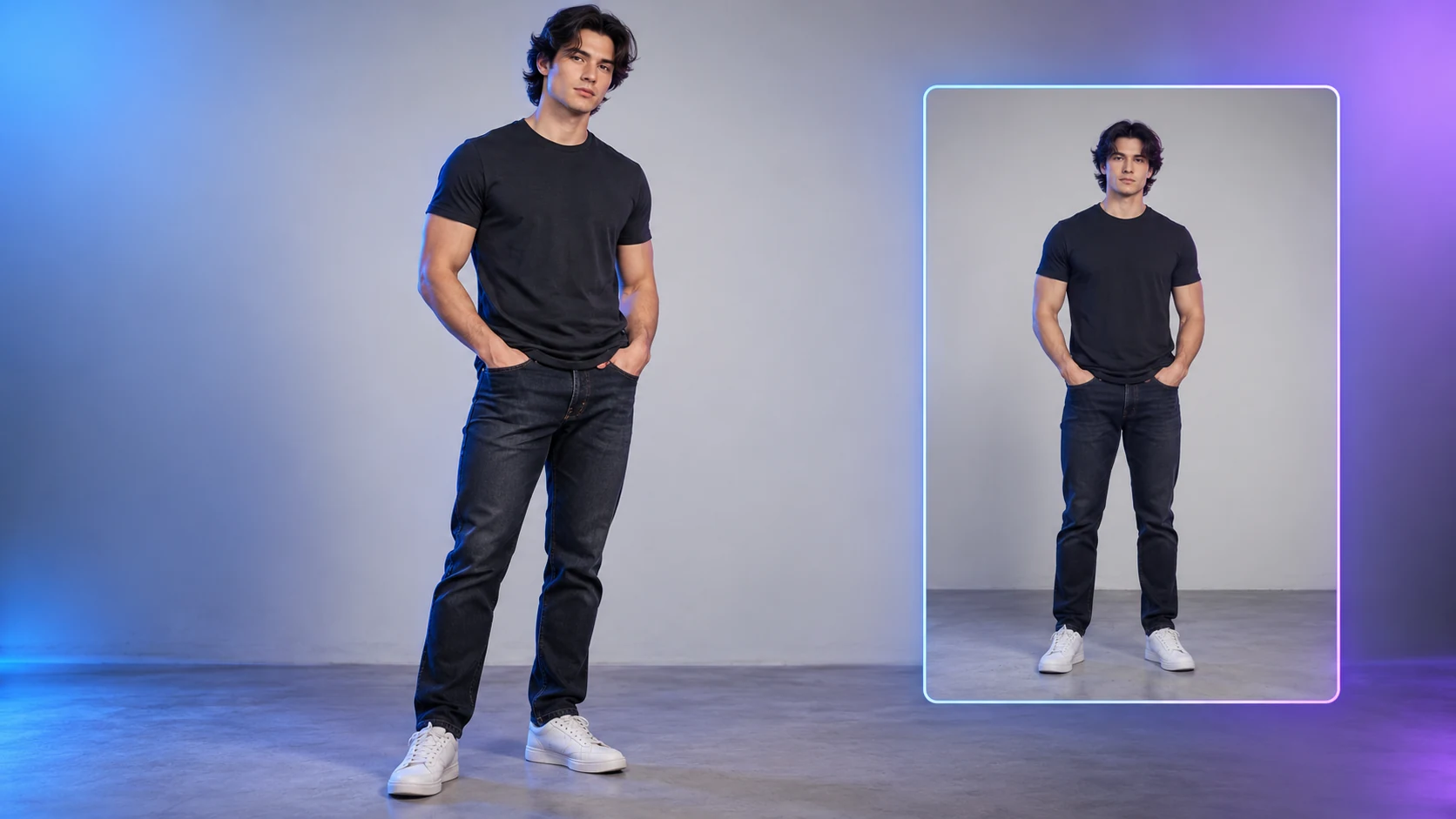
Before opening a generator, write down three things: what must stay recognizable, what should change, and what the camera should show. That small note prevents the prompt from turning into a list of disconnected costume adjectives.
Write a prompt with identity, costume, setting, and camera
A useful prompt answers four questions in plain language:
- Identity: Which visible features should stay close to the source?
- Costume: What broad color and material direction should change?
- Setting: Where is the subject, and what light describes the scene?
- Camera: Is this a portrait, medium shot, or full-body frame?
Keep each instruction compatible with the others. “Preserve the same face” and “make a new person” conflict. “Full-body acrobatic leap” and “tight face close-up” ask for different framing. Choose one action for the still, then let the video step add motion.
Here is a starting prompt for an original superhero transformation. It describes a visual direction without asking for a logo, exact costume insignia, or readable text:
Restyle the person in the reference as an original adult masked city acrobat.
Preserve the same face shape, skin tone, hairstyle, and age. Use a fitted
navy-and-black suit with a simple cobalt chest motif, no letters or logos.
Place the subject on a rain-dark rooftop at blue hour with soft city lights.
Medium full-body portrait, clear face, natural anatomy, cinematic but realistic
lighting, vertical 9:16 composition. Keep the person centered with room around
the shoulders and hands.
The prompt names the ingredients rather than stacking effects. “Cinematic” is supported by specific lighting and setting; “vertical” is supported by a planned composition. If the result is too dark, change the lighting phrase. If the face drifts, remove extra costume or background detail before adding stronger identity language.
For a more restrained fan-inspired look, use a separate constraint block:
Create an original Nightwing-inspired superhero interpretation, not an official
DC costume image. Keep the source subject recognizable. Do not add a DC logo,
wordmark, captions, weapons, extra people, glowing eyes, or unreadable symbols.
Use a clean blue-and-black palette and one simple chest shape.
This is a prompt starting point, not a guarantee. Image models can alter identity, change an emblem, or invent small text even when the instruction is clear. Review the output at full size before you animate it.
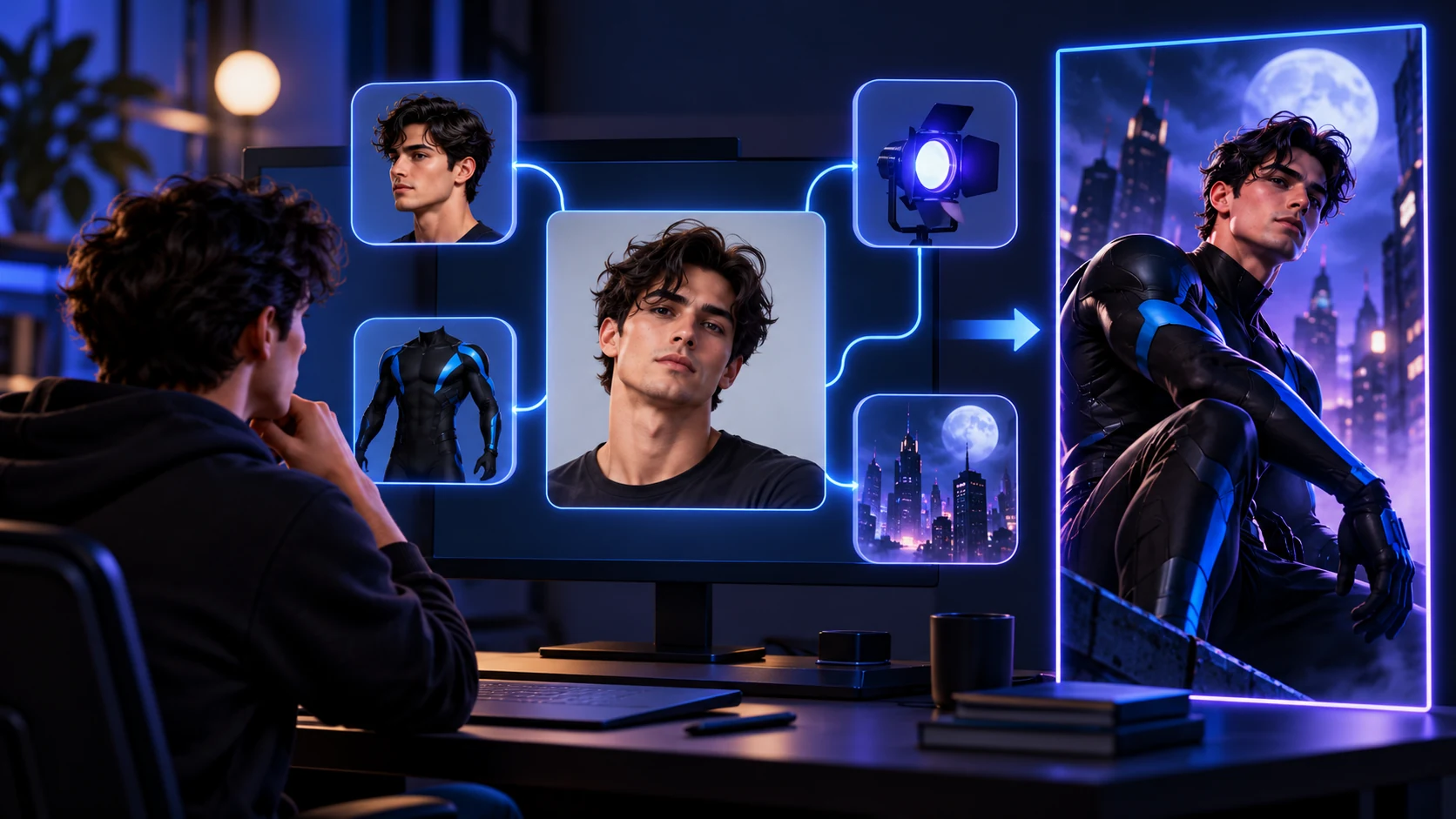
Create and inspect the transformation still
Open the image-to-image workspace, upload the source you selected, and start with the short prompt. Keep the same input while you refine one issue at a time. If the face is too different, simplify the styling request and restate the facial features to preserve. If the background overwhelms the person, shorten the setting phrase or ask for softer, less detailed lights.
Inspect the still before moving to video. Check the face at normal viewing size, then zoom in on the hands and costume edges. Look for accidental lettering, warped fingers, a second face in the background, and a costume shape that reads like a real logo. If you see a problem, revise it in the image step. Video generation can amplify small visual defects because it redraws the subject across frames.
Choose the best still for the final format. A vertical social edit should leave space for the head and shoulders; a wide scene can show more of the rooftop but makes the face smaller. If the image-to-video workspace accepts an input image for the model shown, use the selected still as its first visual reference. The model selector and available controls can change over time.
Animate one action instead of a whole scene
The video prompt should describe motion that can happen in one continuous shot. For example: shift weight, turn toward the camera, let the jacket move in a light breeze, then hold the pose. Keep the camera steady or use one small camera move. Asking for a leap, a landing, a costume change, a 360-degree spin, and a city fly-through in one short clip gives the model several opportunities to lose the face or outfit.
Use this motion prompt as a first pass:
The character takes one measured step forward and turns slightly toward camera.
The camera makes a slow, subtle push-in and stays at chest height. A light
breeze moves the jacket edge; the face, hairstyle, suit colors, and body shape
remain consistent. One continuous shot, controlled movement, no scene cut,
no added text, no new people.
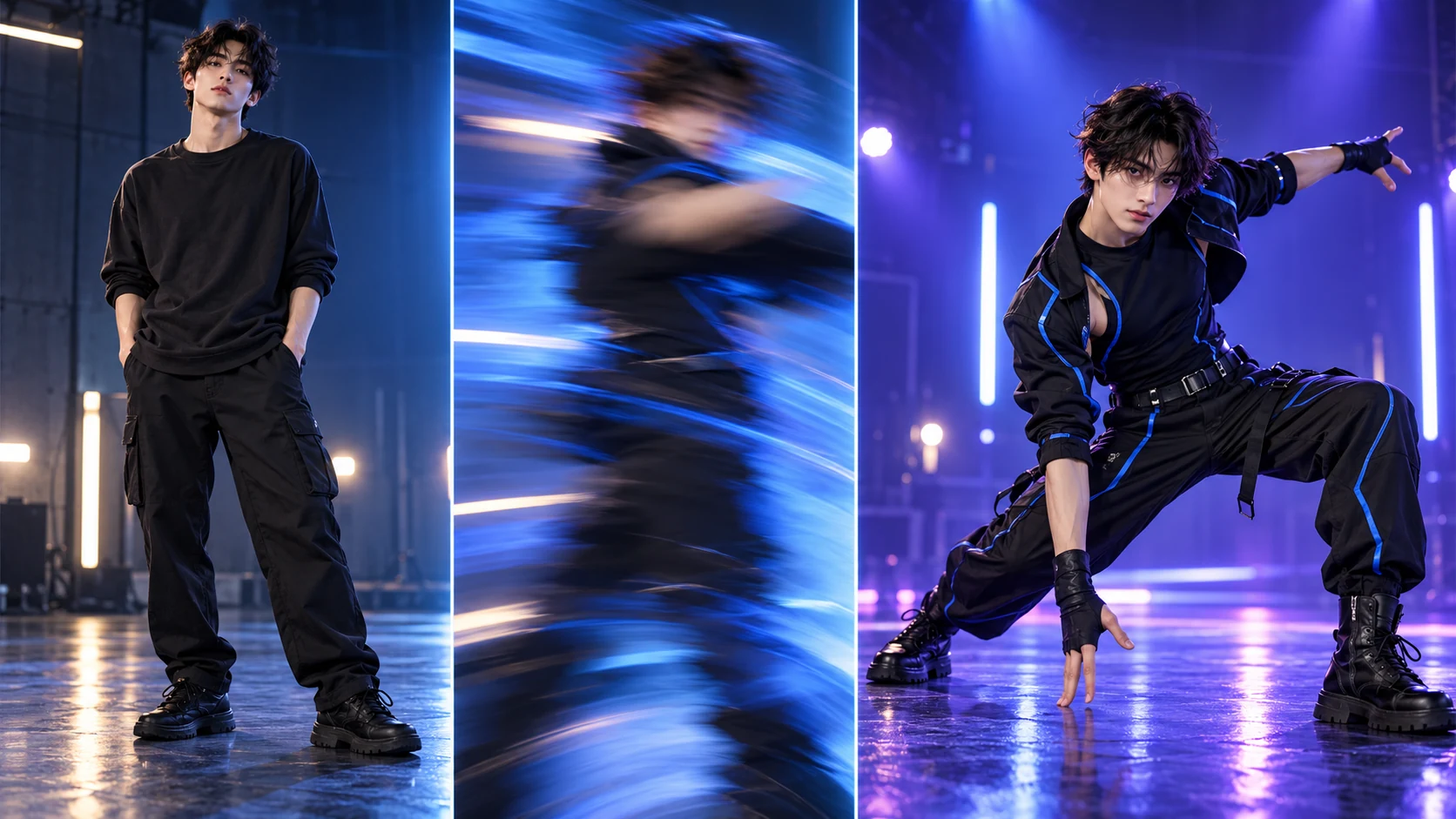
The camera-whip illustration above is a planning aid, not a generated clip. A fast camera whip may look dramatic, but it also hides facial detail and makes it harder to judge whether the subject stayed consistent. Start with a slow push or a fixed frame; add faster motion only if the still remains readable.
The silent video below is an illustrative workflow storyboard assembled from the original diagrams on this page. It demonstrates the stages and edit order. It is not a Nightwing generation result, a screen recording, or a sample produced by Meme Video Maker.
When a model offers duration, resolution, aspect ratio, or a credit estimate, review the current settings in the interface before you submit a generation. These options and estimates depend on the selected model and can change. You can compare workflows on the site's photo-to-meme video guide and AI dance video from photo guide.
Edit the transformation so the idea reads quickly
A before-and-after edit works when the viewer can understand the change without a paragraph of explanation. Put the original image or clip first, align the transformed clip to the same pose or beat, and cut at the moment where the new look becomes obvious. If you have only one generated shot, use a short hold before the motion and trim the tail after the clearest frame.
The editing timeline is where you can add exact captions, sound, and transition timing. Add words in an editor rather than asking a video model to render small readable text. Keep the subject inside safe margins so a platform interface does not cover the face or chest. Watch the final edit once at phone size; facial drift and frame jumps are easier to notice when the video is small.
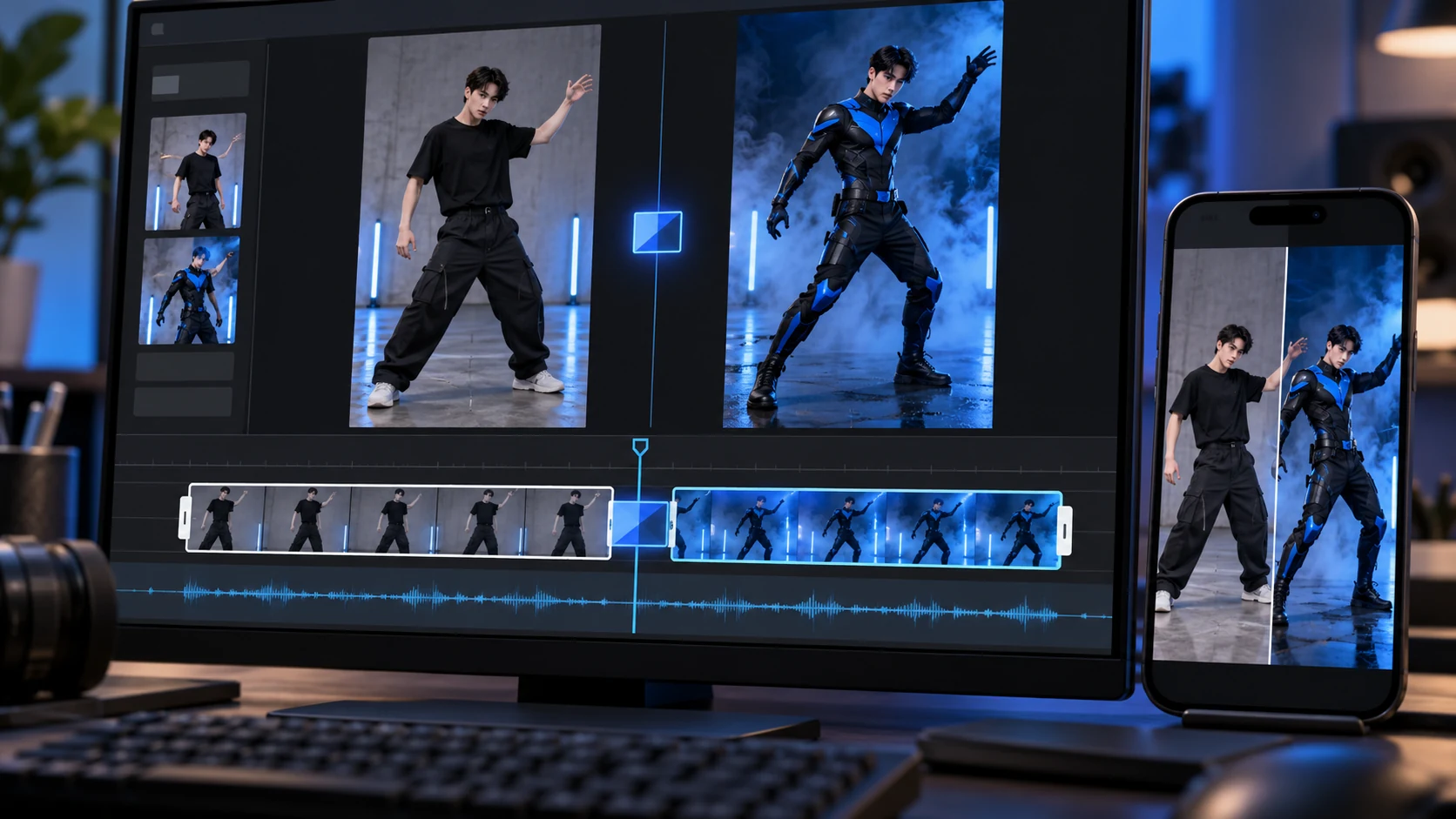
If you want a different format, the site's AI meme generator and AI dance video from photo guide cover adjacent image and motion workflows. Use the workspace to choose a creation mode that fits the source you already have.
Troubleshoot common Nightwing AI problems
Change one input at a time so you can tell what helped. The table below maps a visible symptom to a likely cause and a focused repair.
| What you see | Likely cause | Try this next |
|---|---|---|
| The face changes before motion starts | The source is blurry, small, or heavily filtered | Use a sharper crop with one visible person; reduce costume details |
| The suit changes between frames | The prompt asks for multiple materials, symbols, or scene changes | Use one palette and one simple chest shape; keep the camera steadier |
| Hands look tangled | The pose or action is complex, or hands are close to camera | Use a relaxed starting pose and one small hand movement |
| The video feels frozen | The motion instruction is vague or the subject is posed rigidly | Name one visible action and one camera behavior |
| A transition hides the character | The edit is too fast or the camera whip is too strong | Slow the transition and hold a clean frame before the cut |
| Text or a logo appears by accident | The model invented details or the prompt requested exact lettering | Remove text from the prompt; add captions in the editor and inspect the export |
Keep a small revision note rather than rewriting everything:
Version 1: clear costume, face drift during turn
Change: remove the turn; ask for a slow head movement only
Keep: source photo, lighting, costume palette, framing
Review: face at opening, midpoint, and final frame
Use this three-beat edit map when the generated shot feels hard to follow:
OPEN: show the original photo long enough to identify the subject
CHANGE: cut on one clear pose or motion beat
HOLD: leave the transformed look visible before the clip ends
If the still itself fails, return to image-to-image. If the still is strong but motion fails, leave the source image alone and shorten the action. If the generated clip is acceptable but the transformation feels abrupt, fix the cut in the editor. This separation makes troubleshooting faster than changing the image, prompt, model, camera, and transition all together.
Protect source rights and label the result
A recognizable character reference does not make every source image free to use. Upload a photo you own or have permission to use, especially when it shows another person. Check the rights for music, motion footage, reference images, and any template elements before you publish. A public template page or tutorial is research material; it does not grant reuse rights for its media.
Describe generated artwork accurately. The illustrations in this guide were created for the article and are Nightwing-inspired visual examples; they are not official DC art and are not evidence of what the product generated. If you share your own fan-made or AI-assisted edit, label it clearly and avoid wording that implies an official release or endorsement. Add exact text and licensed audio in a separate editor, then review the exported file rather than relying only on the generation preview.
Frequently asked questions
What does Nightwing AI mean?
It is a search phrase used for AI superhero portraits, photo transformations, and short motion edits inspired by Nightwing. The exact steps depend on whether a page describes a template, a still-image generator, or a video workflow.
Is there one official Nightwing AI app?
The phrase appears across different tutorials and editing templates, so it does not identify one standardized app. This guide demonstrates a general image-to-image followed by image-to-video route with Meme Video Maker.
How do I make a Nightwing AI video with Meme Video Maker?
Use a clear source photo, create an original superhero-style still in image-to-image, check the face and costume, then animate one controlled movement in image-to-video. Review the full clip and make the final transition in an editor.
Why does the face or costume change during generation?
The model is creating motion and appearance together, so a turn, fast camera move, dramatic lighting change, or crowded prompt can make features drift. Keep one reference, one action, and a simple camera move; inspect the opening, middle, and last frame.
What photo works best for an AI superhero transformation?
Choose a sharp, well-lit portrait or three-quarter image with one visible person and space around the intended crop. Avoid heavy filters, overlapping people, and blurry faces. Make sure you have permission to upload and share the image.
Can I post a Nightwing-inspired AI video?
Check that you have rights to the photo, likeness, music, and any source footage. Label fan-made or AI-assisted work and do not present it as official character art or an endorsed product.
Make your own version
Start with the source photo and the final frame in mind. Create one clean transformation still, animate one action, and use an editor for timing and exact captions. If your first result drifts, simplify the prompt before changing the entire workflow.
You can start at Meme Video Maker, open the image-to-video workspace with Seedance 2.0 Mini selected, or compare the current pricing and credit details before you generate. The workspace displays the model options and estimate available for your account.
For another photo-led motion workflow, see the Dime Dime Baby AI video guide.