Uncategorized
Eavesdrop AI Video: Make a Listening Gag
Learn what the Eavesdrop AI video effect is and plan a staged listening gag with a clear prompt, simple framing, and privacy-aware sharing.
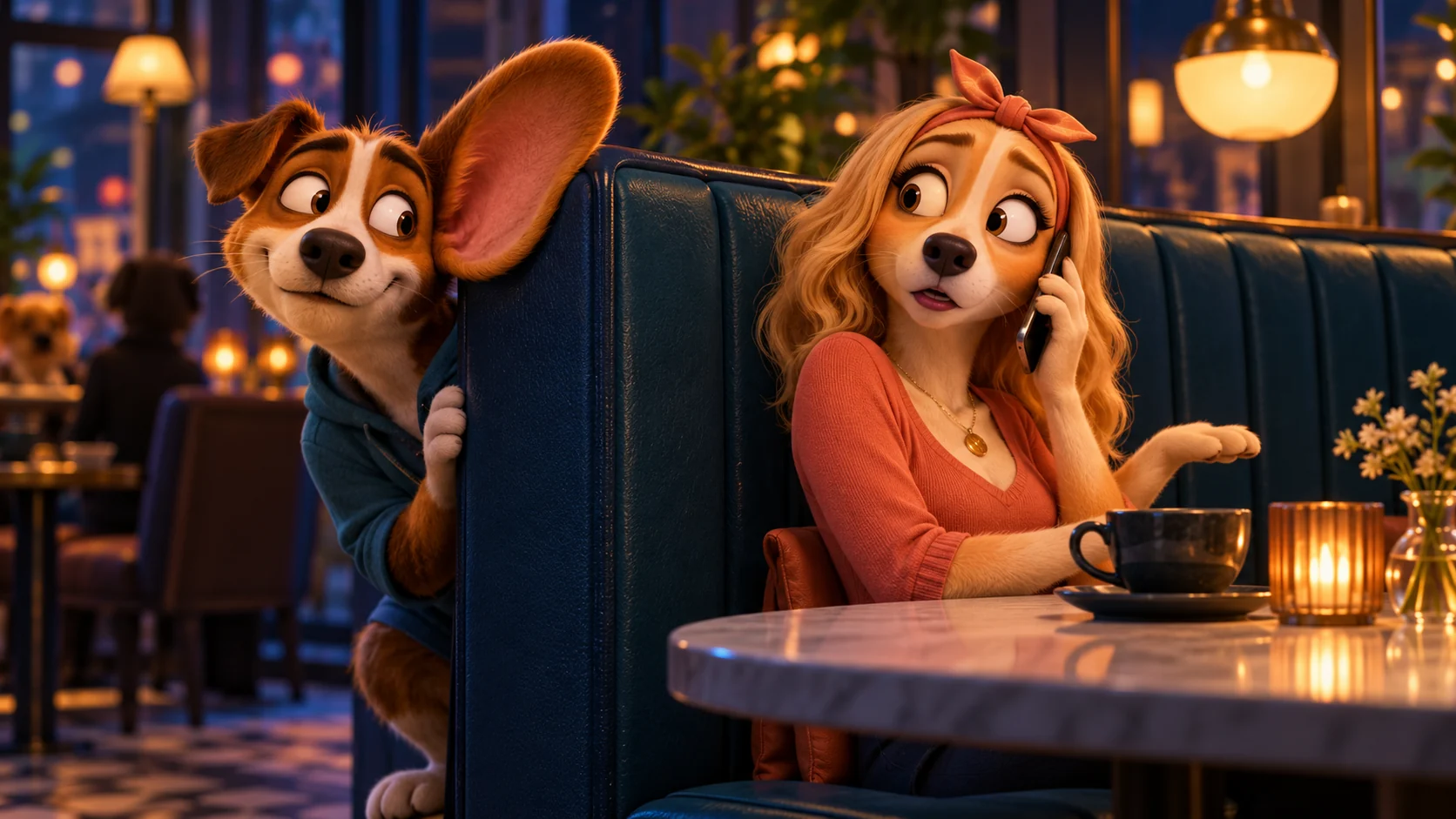
The Eavesdrop AI video effect is a staged comedy gag: one character is busy on a call, another leans in to listen, and the listener freezes when noticed. The joke works when viewers can read three beats in order: setup, listening action, and caught reaction. This guide shows how to plan that scene with a focused prompt, simple framing, and a careful final review.
Here, “Eavesdrop AI video” means a fictional visual performance, not recording or reconstructing anyone’s real conversation. Meme Video Maker does not list a dedicated Eavesdrop preset. You can make an original interpretation with the general image-to-video workspace or text-to-video workspace. Start from the Meme Video Maker homepage to explore the available creation options. For a separate photo-led idea, explore AI dance from photo; the listening gag itself can use either general video workflow.
What does “eavesdrop” mean in an AI video?
In everyday English, to eavesdrop is to listen to a private conversation without the speakers knowing. An AI video effect can use the word as a visual joke: a fictional character leans toward a conversation, makes an obvious listening face, and gets caught. The scene should communicate the idea through acting and framing. It does not need dialogue, a real recording, or anyone’s private words.
The distinction matters because the same word can describe both a light fictional gag and an actual privacy violation. A broad expression, an exaggerated ear, or an obviously theatrical setting helps viewers understand that the scene is invented. Do not turn an identifiable stranger or a real private conversation into the punchline.
A search for “Eavesdrop AI video” may also lead to effect pages and tutorials from individual providers. Those pages describe their own workflows and examples; they do not establish a shared model standard or prove who originated a format. For a product-specific page, check what the current interface actually offers. On Meme Video Maker, start with the general image-to-video workflow or the text-to-video workflow, then confirm the selected model’s current inputs and controls.
If you are exploring other photo-led formats, compare the Nightwing AI photo-to-video guide and Dime Dime Baby AI dance guide. Each works best when the source image, movement, and intended joke are clear before generation.
How the three-beat Eavesdrop joke works
Plan the clip as a tiny story. Each beat answers a different viewer question:
BeatWhat the viewer needs to seeKeep it simpleSetupWho is occupied, and where are they?One caller, one readable placeListenWho leans in, and what do they do?One obvious listening gestureCaughtWhat changes when the caller notices?One glance, freeze, or embarrassed smile
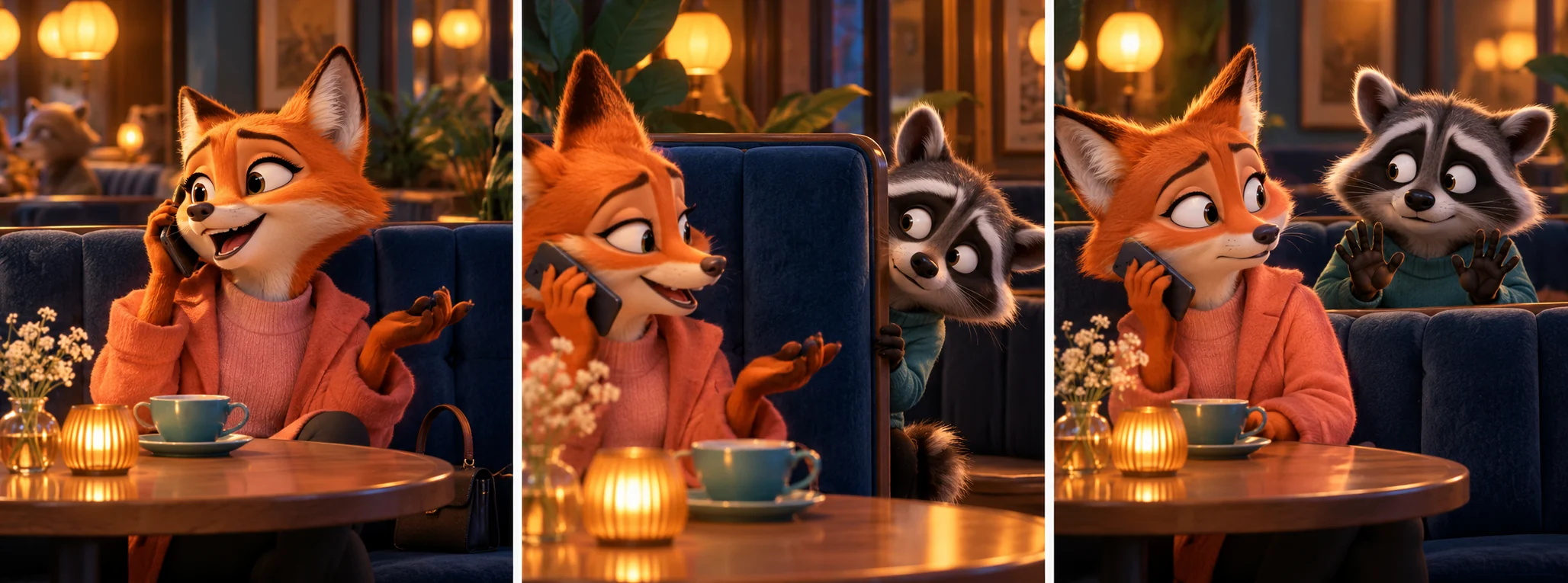
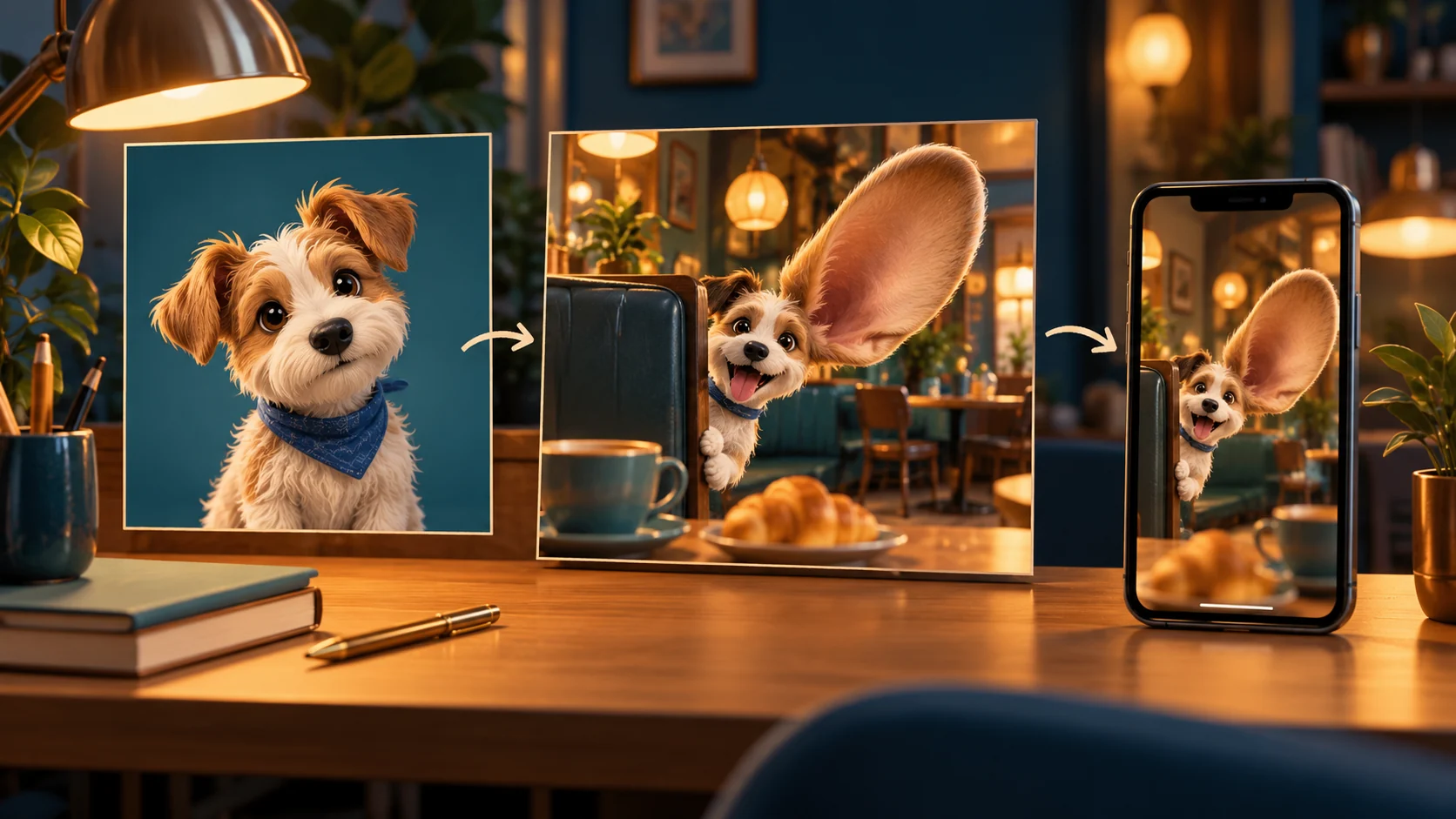
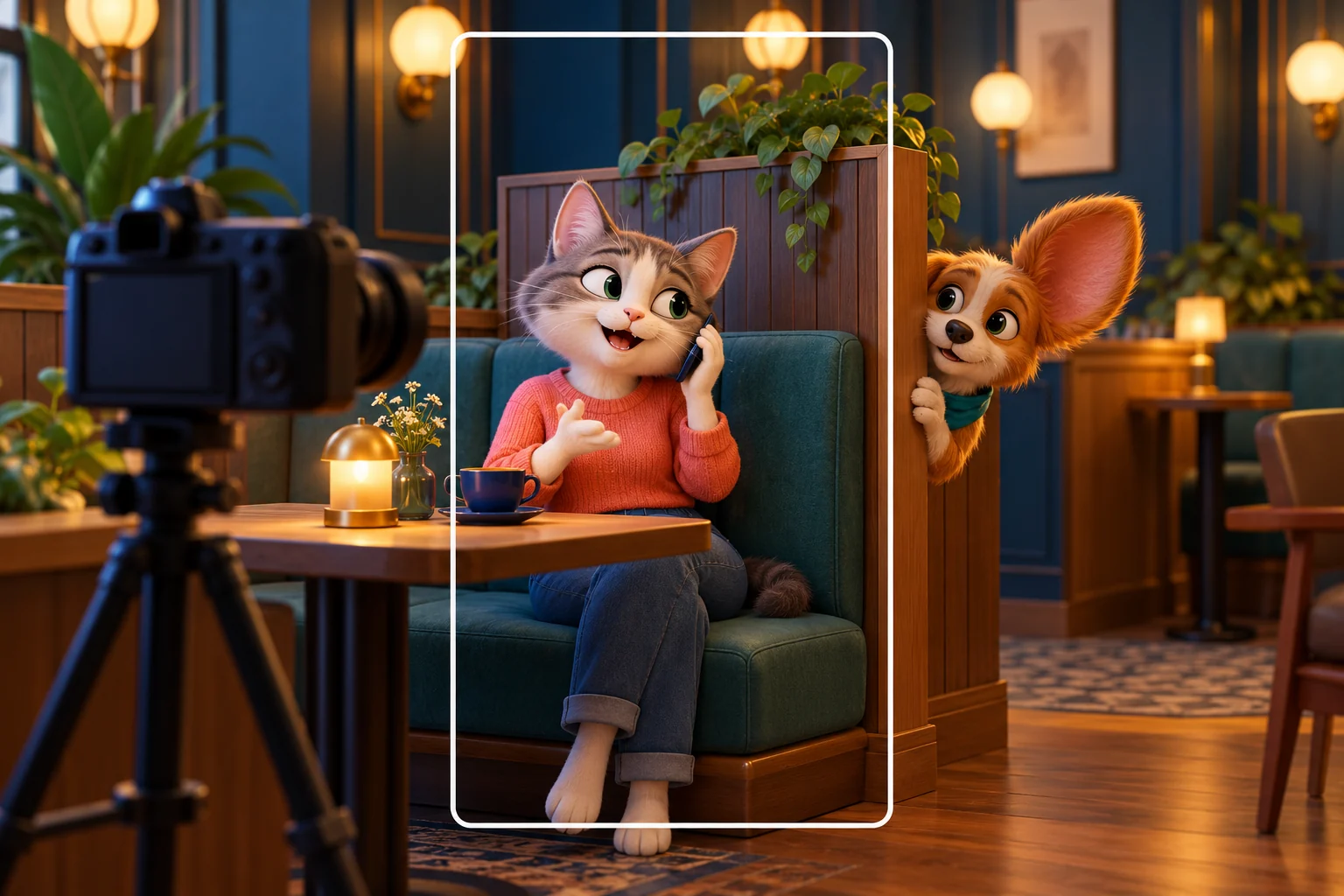
The first character could take a phone call at a café table. The second peeks around a booth divider with a comically oversized ear. When the caller looks back, the listener stops moving and tries to look innocent. That reaction is the punchline.
Give every beat one job. If the scene also changes location, adds a chase, switches outfits, and includes a long conversation, viewers have to decode too much at once. The video model also has more details to maintain across frames. Begin with one setting, one action, and one reaction. Add a visual detail only when it makes the joke easier to understand.
A useful timing test is to describe the clip without adjectives: “A caller talks. A listener leans in. The caller notices. The listener freezes.” If that sentence is hard to follow, simplify the action before polishing the style.
Is the Eavesdrop effect a preset or a prompt?
The word “effect” can refer to a named preset on a particular service, a look that people recreate with prompts, or a general idea for a short comedy scene. Check the exact tool before assuming those mean the same thing. A branded effect page is evidence about that provider’s own interface, not proof that every video generator has the same template, upload slots, output length, or controls.
Meme Video Maker does not list an Eavesdrop-named preset. The practical route is to describe the scene in a general generation workflow. Choose image-to-video when you already have a still image and the model accepts it. Choose text-to-video when the scene is easier to explain than to source visually. If you want to design a character image first, image-to-image can help you prepare an original still before animation.
Model availability and input requirements can change. Before generating, read the options visible for the model you selected. Confirm its source-image support, aspect ratio, duration, reference-image fields, and estimated credits rather than relying on a tutorial made for a different product.
Before you start: choose the source and the joke
Decide what the viewer should understand before choosing a model. A short brief prevents the prompt from becoming a list of unrelated visual details:
-
Characters: Who is occupied, and who appears to listen?
-
Relationship: Are they fictional strangers, friends, pets, or invented characters?
-
Setting: Can the audience identify one simple location?
-
Action: What single movement shows the listener leaning in?
-
Reaction: What does the listener do after being noticed?
-
Tone: Should the scene feel playful, exaggerated, or deadpan?
-
Source rights: Do you own the image or have permission to upload and transform it?
An original animal pair is a useful choice because it signals fiction and gives you room for broad expressions. A generated illustration also avoids implying that a real person said or heard something they did not. If you use a photo, make sure the subject and the photographer’s rights are covered. Avoid photos taken from private accounts or images of people who have not agreed to appear.
Choose a source that already contains the important visual information. If the punchline depends on a big ear, keep the ear visible. If the listener must peek from behind a divider, leave enough space around that divider. Do not begin with a tightly cropped face and expect the model to invent a consistent second character from it.
Step-by-step: how to make an Eavesdrop AI video
-
Choose a permitted image or scene. Use a fictional character, an original illustration, or a photo you are allowed to upload and transform. Do not use a covert recording or a stranger’s identifiable face.
-
Pick the workflow that matches your source. Start in image-to-video if your selected model accepts the still image. Use text-to-video when you need to describe both characters and the complete setting in words.
-
Frame both roles. Keep faces and the listening gesture inside the crop. Leave space beside the divider for a lean and above the head for an exaggerated ear.
-
Write the three-beat prompt. State who is busy, what the listener does, and how the listener reacts when noticed. Ask for one continuous shot and a steady camera.
-
Generate a short draft. The available duration, credit estimate, and aspect options depend on the chosen model. Check the current interface before submitting.
-
Review the whole clip. Watch the beginning, middle, and end. Confirm the setup reads before the listening action and that the caught reaction follows it.
-
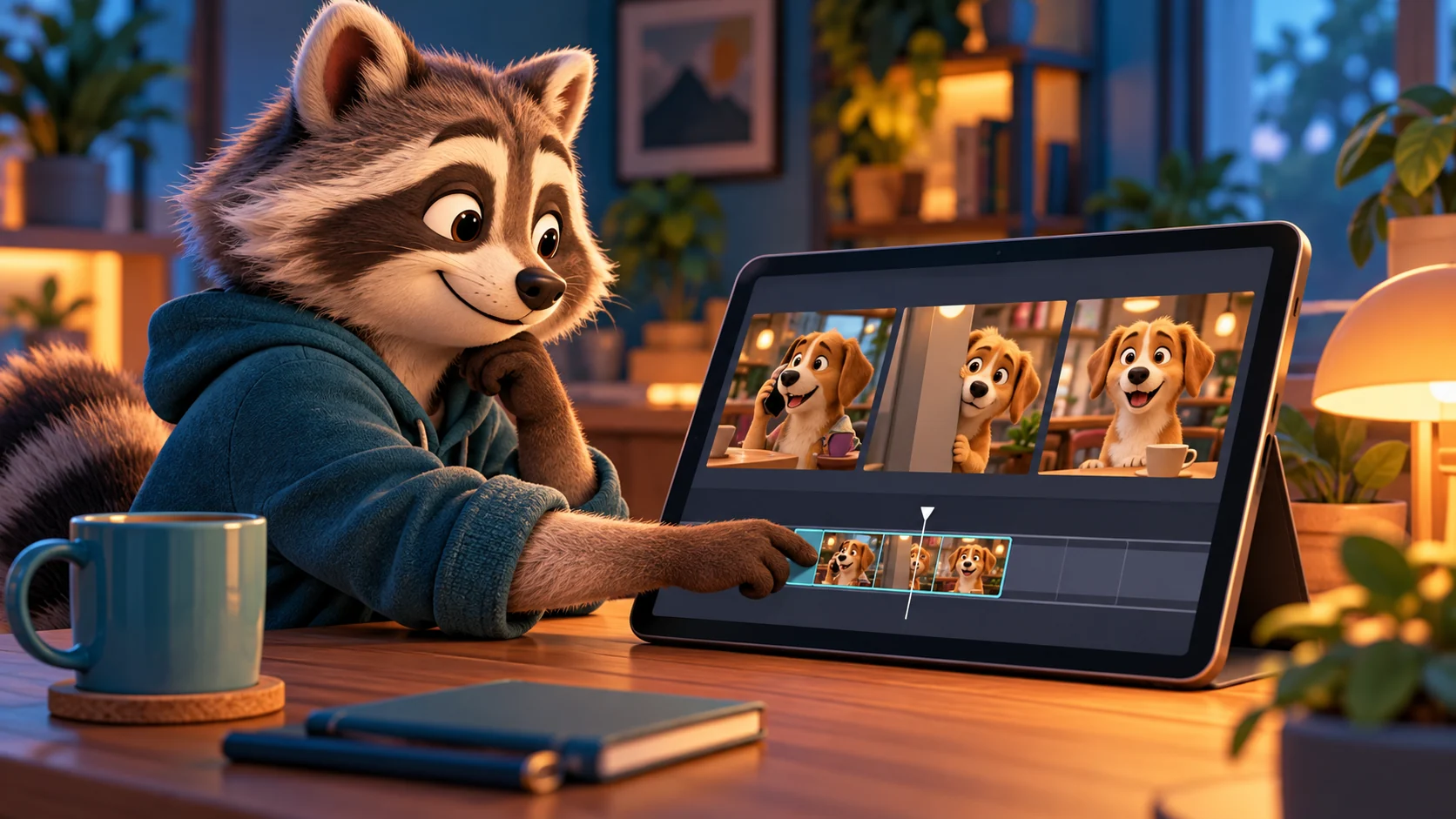
Trim and finish the edit. Keep the clearest punchline, then add exact captions or permitted audio in an editor if needed. Preview the exported file on a small screen.
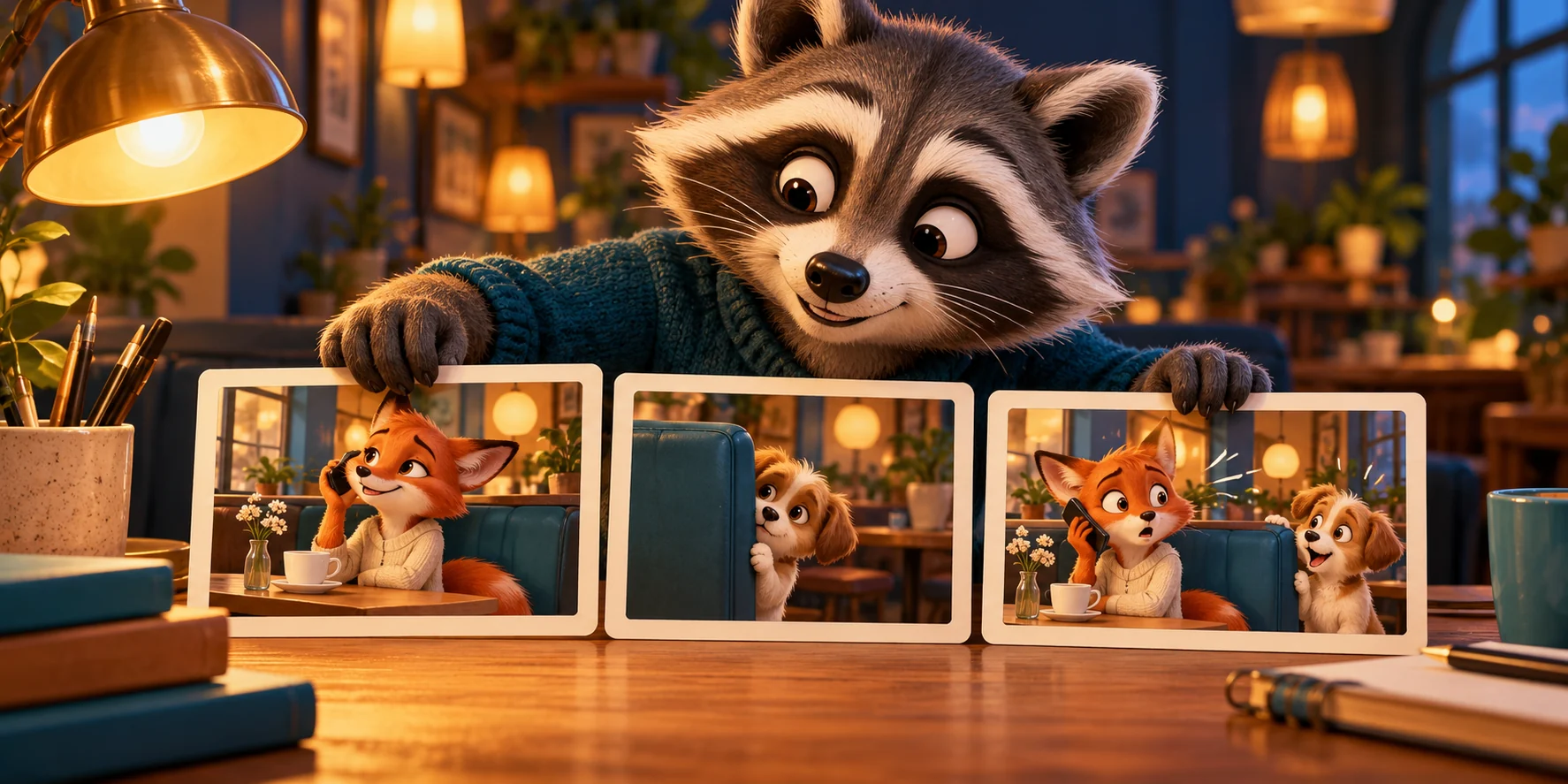
The silent storyboard below is an original visual illustration of the three beats. It is not a result generated by the Meme Video Maker workflow.
Build a prompt that gives every beat a job
A strong prompt moves from the broad scene to the one action and then to continuity. Include enough detail for the model to understand the composition, but avoid repeating the same instruction in different words.
Use this structure as a checklist, then write it as a natural sentence:
SETTING + BUSY CHARACTER + LISTENER ACTION + CAUGHT REACTION
+ TWO-SHOT FRAMING + CAMERA + LIGHTING + CONTINUITY LIMITS
Give roles names such as “the caller” and “the listener” instead of repeating “they.” Avoid pronouns if the model might confuse which character should move. If only the listener should lean, say “the caller stays seated while the raccoon leans in.” If the caller should look back, say who looks and when.
Copy-ready Eavesdrop AI video prompts
Use one of these prompts as a starting point. Match the wording to your selected source image and model. Features vary: a particular model may not accept reference photos, negative prompts, exact frame counts, or a dedicated camera field.
1. Two-character café scene
In a cozy cafe booth, an original fictional dog character takes a phone call. A fictional raccoon peeks once around the divider with one comically oversized ear, then notices the dog looking back, freezes, and gives an innocent smile. Keep both faces and the listening gesture visible in a medium two-shot. Warm evening light, simple background, steady camera, one continuous shot, subtle movement. No dialogue, no scene cut, no added text, no extra characters.
2. One-image starting point
Animate this original illustrated caller in a quiet cafe. Keep the character's appearance and clothing consistent. A curious fictional listener leans into the edge of the frame once, the caller glances over, and the listener freezes with an innocent expression. Use a medium shot, steady camera, one continuous take, and simple background movement only. No dialogue, no added text, no new scene.
3. Two-reference setup
Use the first permitted character image as the caller and the second as the listener, if this workflow supports two references. Place them in one fictional cafe booth with matching warm light. The caller stays on the phone while the listener peeks around the divider, leans in once, then freezes when the caller looks back. Keep both faces and ears visible in a medium two-shot. No scene cut or dialogue.
4. Text-to-video version
A playful, clearly fictional cafe scene: a dog character takes a phone call at a booth while a raccoon character slowly peeks around the divider. The dog notices, and the raccoon pauses with a sheepish smile. Show the setup, one listening action, and the caught reaction in that order. Medium two-shot, stable camera, warm light, restrained motion, no dialogue, no extra characters, no on-screen text.
5. Revision prompt for a crowded result
Keep the same fictional caller, listener, cafe booth, and lighting. Simplify the action to one peek and one glance back. Keep both characters visible in a medium two-shot with a steady camera. Remove extra gestures, props, scene changes, and text. End on the listener's brief frozen reaction.
A prompt cannot guarantee that faces, ears, clothing, or backgrounds remain identical in every frame. Treat each version as a draft. If your selected model exposes reference or negative-prompt controls, use only the controls shown in its current interface.
Plan two characters and a readable frame
The gag depends on the audience seeing both the person on the call and the character who appears to listen. A large close-up can show expressions but hide the relationship between the characters. A wide shot can show the setting but make the reaction too small. A medium two-shot is a practical place to start.
Keep the listener near a doorway, booth divider, or edge of the frame. That gives the character a clear point of entry. Leave breathing room above the head if the gag includes an oversized ear, and preserve space beside the body for the lean. If a hand or phone matters, keep it inside the crop rather than on an edge.
For separate source images, compare their camera angles before generating. If one character looks down from a top-down view and the other looks up from eye level, the scene may feel pasted together. Similar lighting direction, eye level, and subject scale can help. It still does not guarantee a seamless merge, so inspect the complete result.
For a vertical post, keep the faces toward the center safe area. Platform buttons and captions may cover the lower and outer edges. For a square or landscape export, confirm that the listener remains visible and that the joke does not depend on a gesture outside the final crop. The AI meme generator can help you prepare an original visual format before turning it into a clip.
Time the gag so each beat reads
Do not ask a very short clip to tell a long story. The opening should establish the caller and setting; the middle should show one listening action; the ending should give the caught reaction enough time to register. If the action is too fast to parse, hold the reaction longer or remove a movement.
A useful first edit can be planned in three sections rather than fixed seconds:
-
Opening: Give viewers a clear view of the occupied character and the location.
-
Action: Let the listener lean in once. Avoid simultaneous camera movement that hides the gesture.
-
Payoff: Let the caller notice and give the listener a short frozen beat before trimming.
These are editing cues, not a required duration. Available clip lengths depend on the current model. If you generate a longer version than you need, trim it after generation. If your output is very short, remove background motion before speeding up the character action.
One continuous shot often makes this gag easier to read. A cut can work if it clearly marks the caller’s glance or listener’s reaction, but a cut on every beat can feel like a different scene. Keep the background simple so the characters’ positions remain the visual anchor.
Fix common Eavesdrop AI video problems
What you seeWhy it may happenWhat to tryThe joke is hard to understandSetup, listening, and reaction happen at onceSeparate the three beats and hold the caught expressionThe listener is cropped outThe source is too tight or the lean moves toward the edgeWiden the crop and leave room beside the dividerThe ear or face changesThe action asks the model to redraw too muchReduce movement and use a clearer source imageThe second character disappearsThe prompt does not keep both roles in frameState that both remain visible in a medium two-shotThe background changesSeveral places or competing details are in the promptChoose one location and remove scene changesCaptions look distortedExact text can be difficult for video models to render consistentlyAdd captions after generation in an editorThe scene feels unsettlingRealistic framing can resemble secret footageUse fictional characters, broad expressions, and an obvious staged settingThe punchline is lost in the cropThe important glance or listening gesture sits near the edgeReframe before generation or export with a safer crop
Change one variable at a time. If the reaction is unclear, adjust timing. If the face changes, reduce motion. If the listener disappears, widen the source. Making several prompt changes together can make it harder to tell which one helped.
Review the video before you export
Watch the full draft once without pausing. Then review the opening, middle, and ending separately. Look for continuity changes: a character’s clothes, eye direction, phone, ear shape, or position may shift even when the main action seems correct.
Use this checklist before publishing:
[ ] The setup is readable before the listener moves.
[ ] Both characters stay visible during the key action.
[ ] The listener's gesture is easy to identify.
[ ] The caught reaction follows the caller's glance.
[ ] No accidental text, names, or private details appear.
[ ] The crop works at the intended aspect ratio.
[ ] The scene looks fictional rather than like hidden-camera footage.
Review the exported file, not only the generation preview. Captions, platform UI, compression, and a final crop can hide a face or trim off the reaction. If the ending changes the framing, check that the joke still reads on a phone screen.
Share the joke without exposing real people
“Eavesdrop” has a serious everyday meaning as well as a comic visual use. Do not secretly record a private conversation, publish someone else’s voice, or frame a fictional AI scene as evidence of what a real person said. The video guide here uses invented characters and a staged cafe setup. The drawings are illustrative, not evidence of an actual event or model output.
Use images you own or have permission to upload and transform. If a character is based on a real person, consider whether they agreed to that use and whether the result could embarrass or mislead them. Remove names, location details, uniforms, private screens, and other identifiers when they are not necessary to the joke.
If viewers could mistake a generated clip for real footage, say clearly that it is fictional or AI-assisted. Check rights for music, voices, and other assets before publishing. Keep the story funny because of its exaggerated reaction, not because it exposes someone who did not agree to be included.
Frequently asked questions
What is the Eavesdrop AI video effect?
It is a staged comedy scene built around a character who appears to listen in, then gets caught. The visual joke can use fictional characters and does not require recording a real conversation.
Can I make an Eavesdrop AI video from one photo?
You can start from one image when the selected image-to-video model supports it. A scene with two characters may need a wider source image, a second reference, or a text-to-video workflow. Check the inputs for the model you choose.
Does Meme Video Maker have a dedicated Eavesdrop preset?
No dedicated Eavesdrop preset is listed. Use a general image-to-video or text-to-video workflow and describe the staged gag in your prompt.
What prompt works best for an Eavesdrop-style video?
Describe the setting and setup first, then one exaggerated listening action, then the caught reaction. Keep both characters in frame, ask for a steady camera, and avoid multiple scene changes or exact on-screen text.
How long should an Eavesdrop AI video be?
Use only enough time for the setup, listening action, and caught reaction to read clearly. The duration depends on the selected model and the controls shown in the current workflow.
Is it okay to use a real conversation in an Eavesdrop video?
Do not secretly record or publish a private conversation. Use fictional characters and images you own or have permission to upload. Make the staged or AI-generated nature clear when viewers could mistake the scene for real footage.
Make an original Eavesdrop-style clip
Keep the first version small: one location, two readable roles, one exaggerated listening action, and one caught reaction. Choose the workflow that matches your image or written scene, review the whole clip, and share it responsibly. To keep exploring, browse the photo-to-meme video guide, explore the AI meme generator, or return to the Meme Video Maker homepage.