
Uncategorized
Tiny Knight Guardian AI Video Guide
Learn what the tiny knight guardian idea means and build an original AI video with clear scale cues, a consistent character, one controlled action, and a practical review checklist.
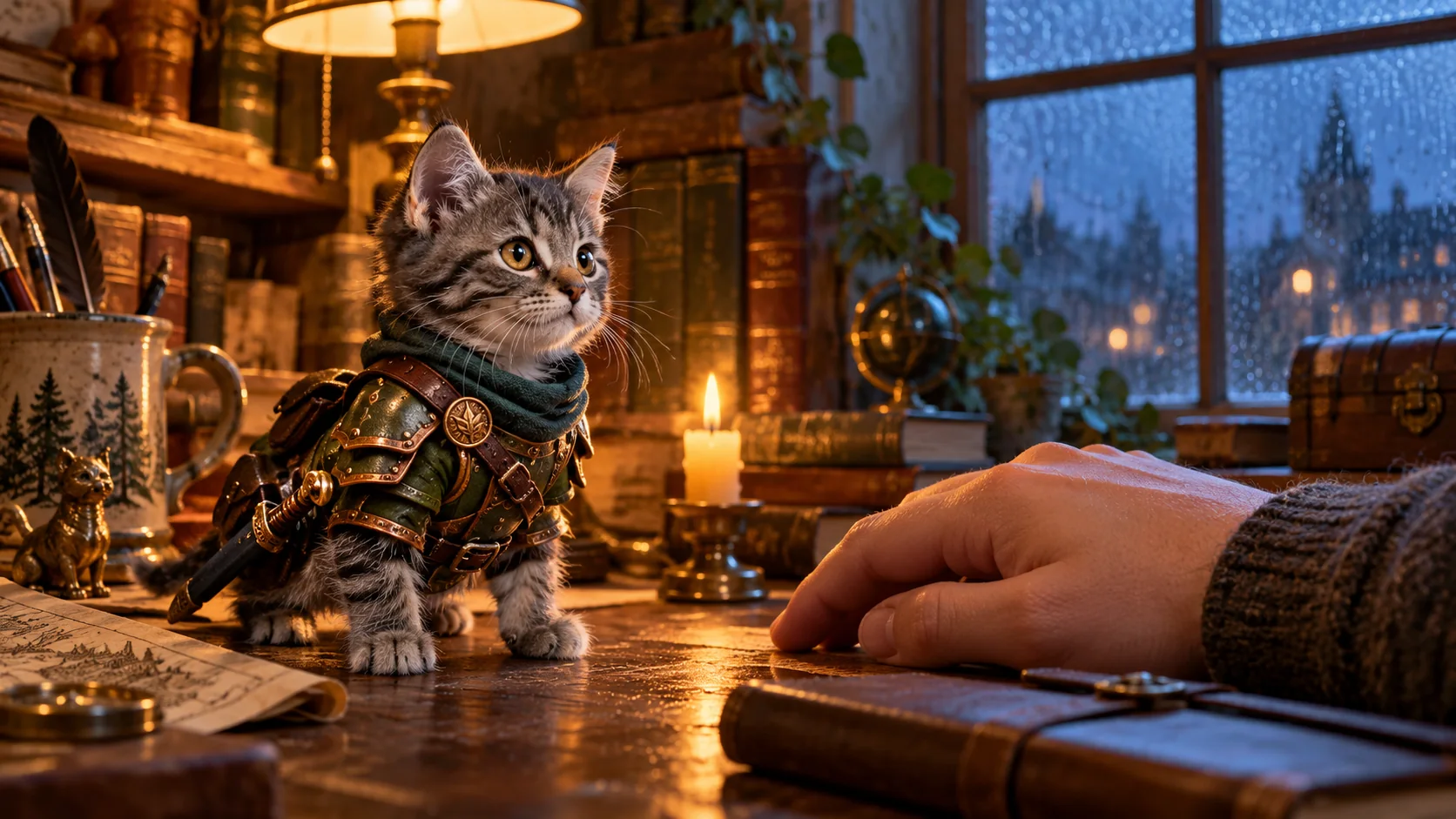
A tiny knight guardian is a miniature armored character protecting something larger: a pet, a person, a keepsake, or an everyday object. The idea works when the viewer can read three things at a glance: the hero is small, the protected subject matters, and the knight makes one clear protective move. It is used both as a named video effect and as a broader prompt description, so check the specific generator before expecting a ready-made preset.
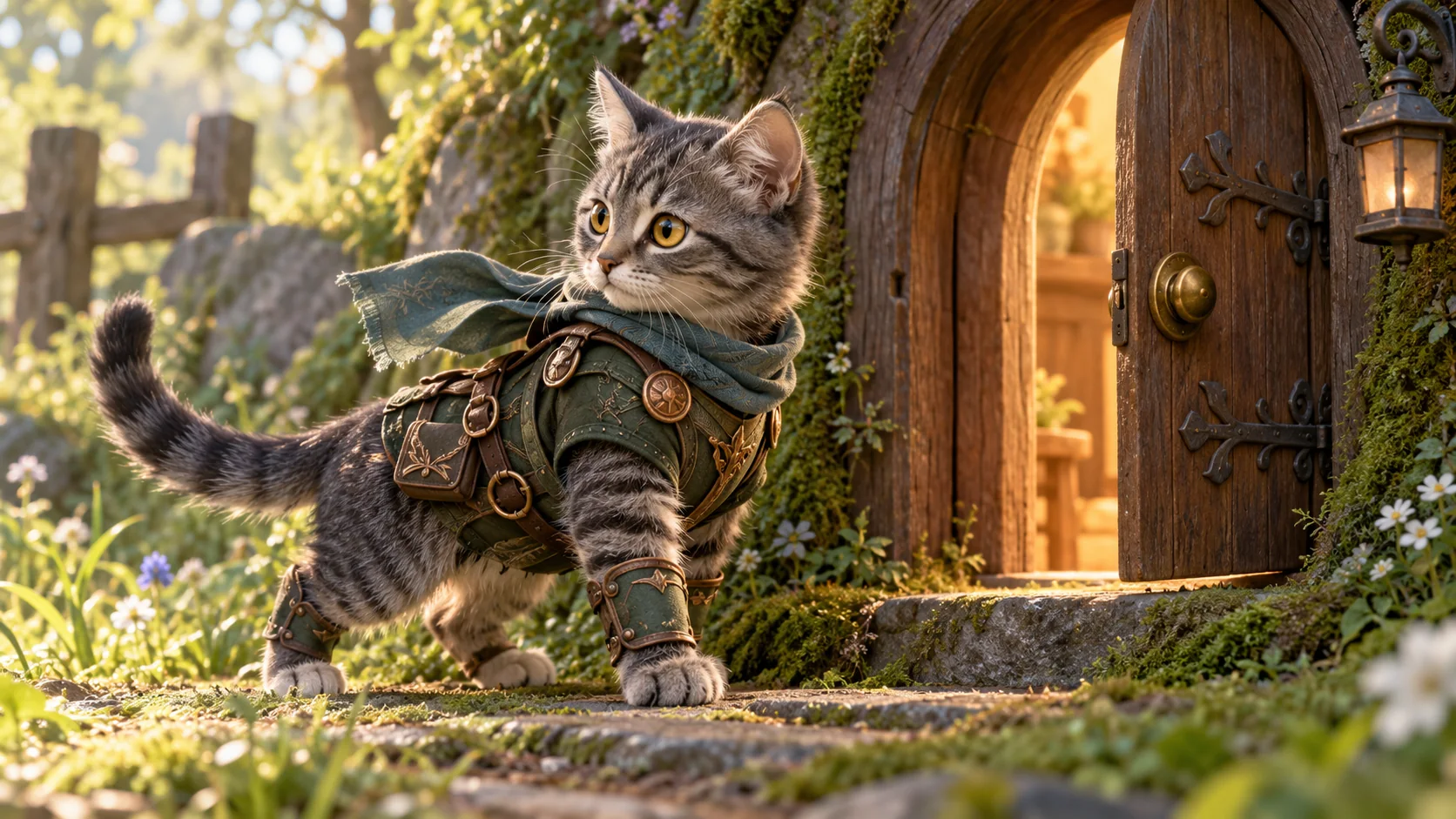
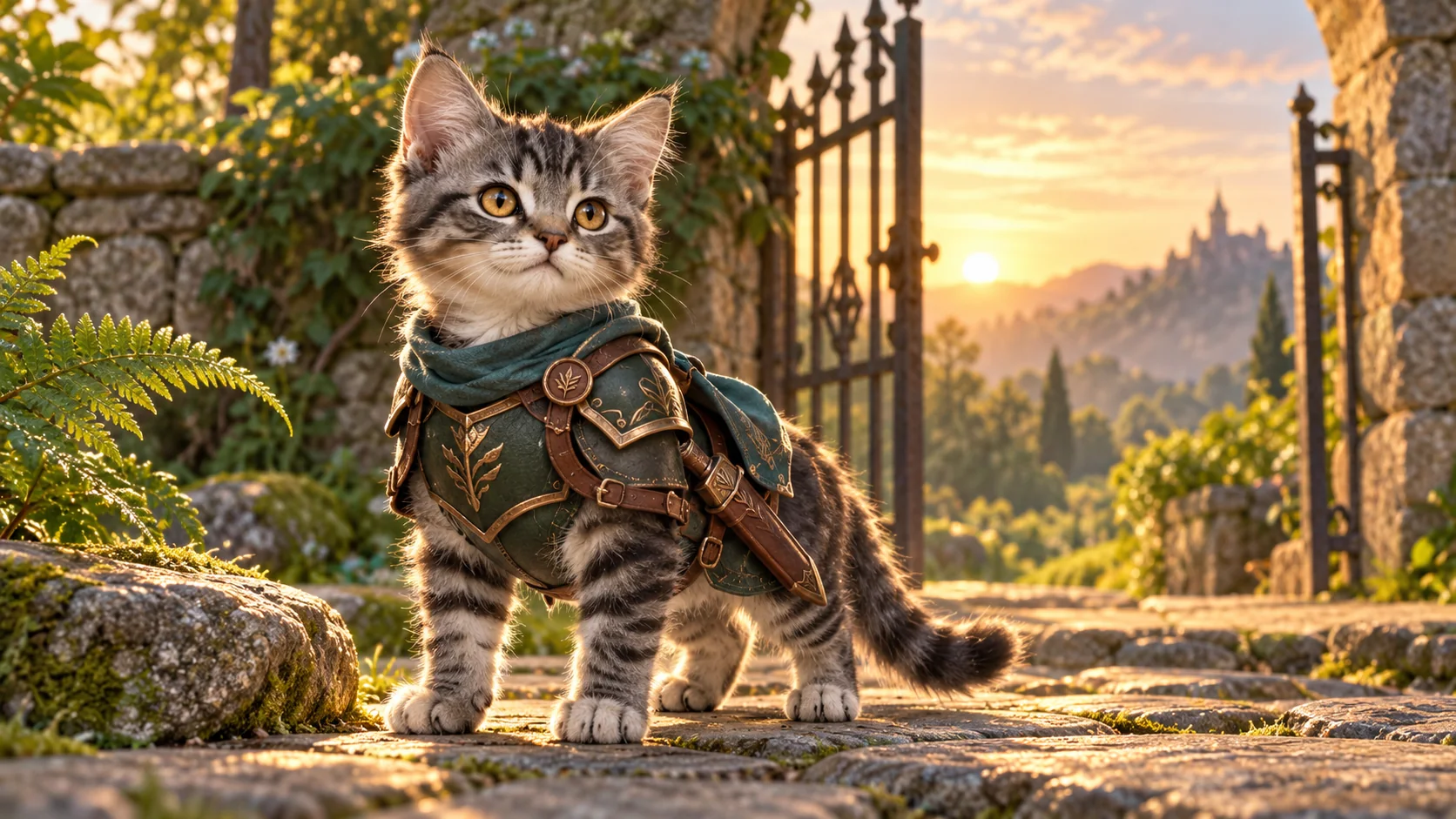
This guide shows how to build a new character and animate one controlled action. The illustrations and storyboard on this page are original AI-created editorial media. They are not samples generated by Meme Video Maker, and they do not reproduce a creator-owned character or a third-party template.
Ready to try your own image? Open Meme Video Maker or go straight to the image-to-video workspace with Seedance 2.5 selected. Check the current model settings before generating.
What does tiny knight guardian mean?
The exact phrase has more than one use in current search results. One video tool uses Tiny Knight Guardian as the name of an effect built around a small kitten and a larger armored protector. Other generator pages use the words as a general miniature-knight prompt. That overlap makes the query ambiguous: one reader may want a specific preset, while another wants an original character idea.
A separate character called KnightCat also appears in this space. Its creator describes a specific kitten, costume, world, and story. This guide does not copy that design. The best starting point for an original version is the basic story pattern: a small guardian, a visible scale cue, and a protective act. You can change the animal, armor, setting, color palette, and prop.
There is no single model, prompt, or output guaranteed by the phrase alone. A page calling something a trend effect describes that publisher's own tool or template. A general image-to-video model may follow the same broad idea differently. Treat the phrase as a creative brief until you confirm a generator offers the named effect you saw.
Give the knight one job before choosing armor
Start with the moment the viewer should remember. A miniature guardian has a clearer story when it is protecting one specific thing. It could hold a paper lantern over a sleeping puppy, stand beside a child's dropped mitten, or block a rolling marble from reaching a cup. The action can be gentle; the scale contrast supplies the visual tension.
Write the scene as a short sentence before prompting: “A tiny armored tabby shields a lit lantern from a gust of wind.” That sentence names the lead, its purpose, and the visible action. If you cannot picture the action in one still frame, simplify it before adding motion.
A useful story beat has a beginning and a payoff. The tiny knight notices a problem, responds once, then holds a readable final pose. Avoid adding an entire battle, a rescue, a costume change, and a camera orbit to the same short clip. Those ideas ask the model to solve several unrelated continuity problems at once.
Keep the stakes friendly for a general audience. A guardian can protect a flower from rain, shelter a toy from wind, or help a larger companion across a puddle. The character still feels brave without showing a weapon striking anything or a creature in danger.
Make the scale obvious with ordinary objects
Size contrast is easy to lose when the camera moves too much. Put a familiar object near the knight and keep it visible through the shot. A mug, paperback, house key, desk lamp, or adult hand can give the viewer a reliable reference. Choose an object that fits the story: a lantern beside the knight can act as both a prop and a scale marker.
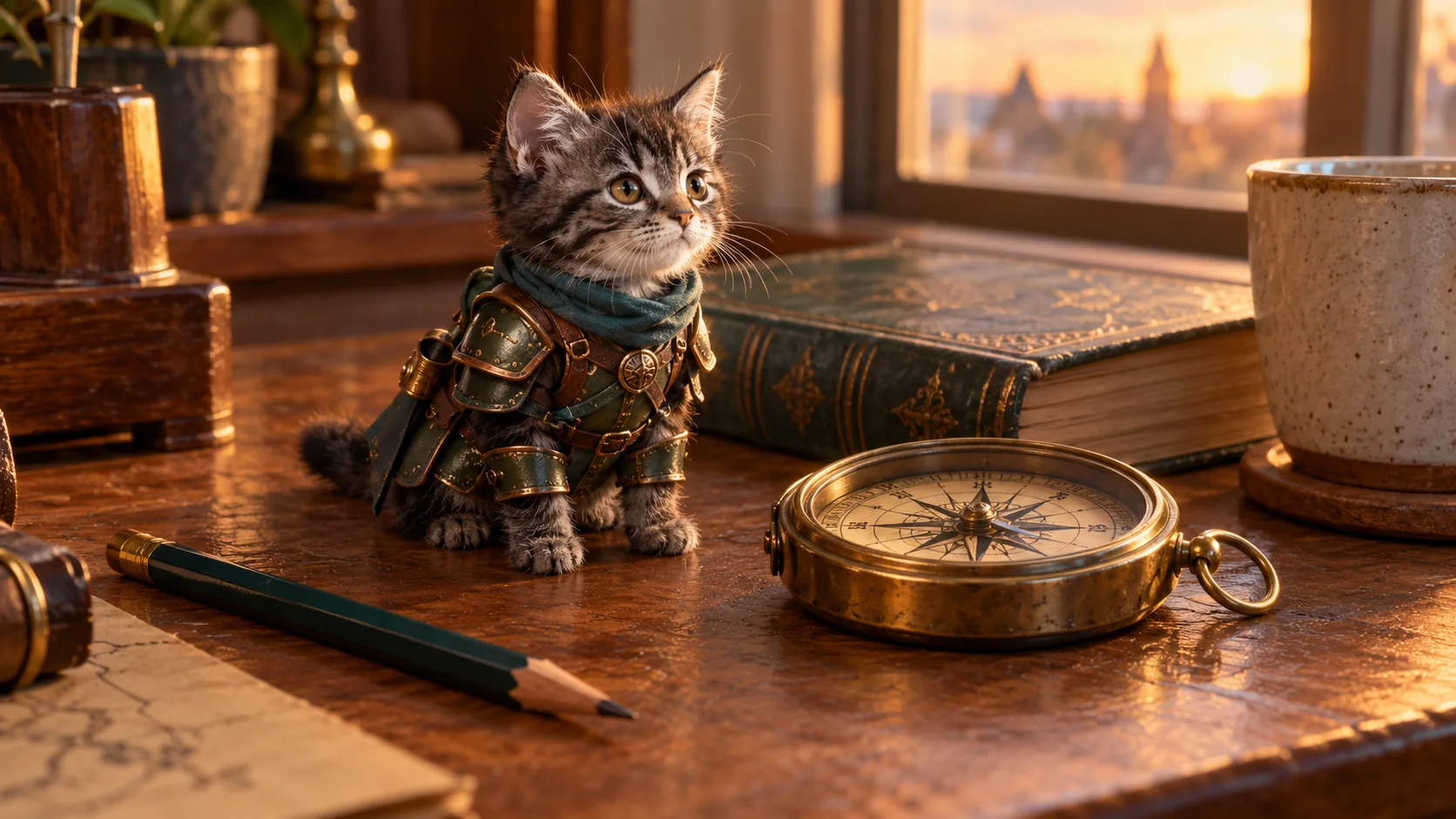
Use a single camera position for the first attempt. A low tabletop view makes the knight feel close to the viewer; a slightly raised view shows the object it guards. Either can work. A dramatic pullback may reveal a larger companion, but keep the first and final framing simple enough for the model to preserve.
Anchor the relative size in words as well as in the picture. Say that the knight is small enough to stand beside the mug handle, or that its shield is shorter than the book spine. Avoid mixing incompatible measurements, such as calling the same character “palm-sized” and “knee-high” in one prompt. The model needs one consistent scale relationship.
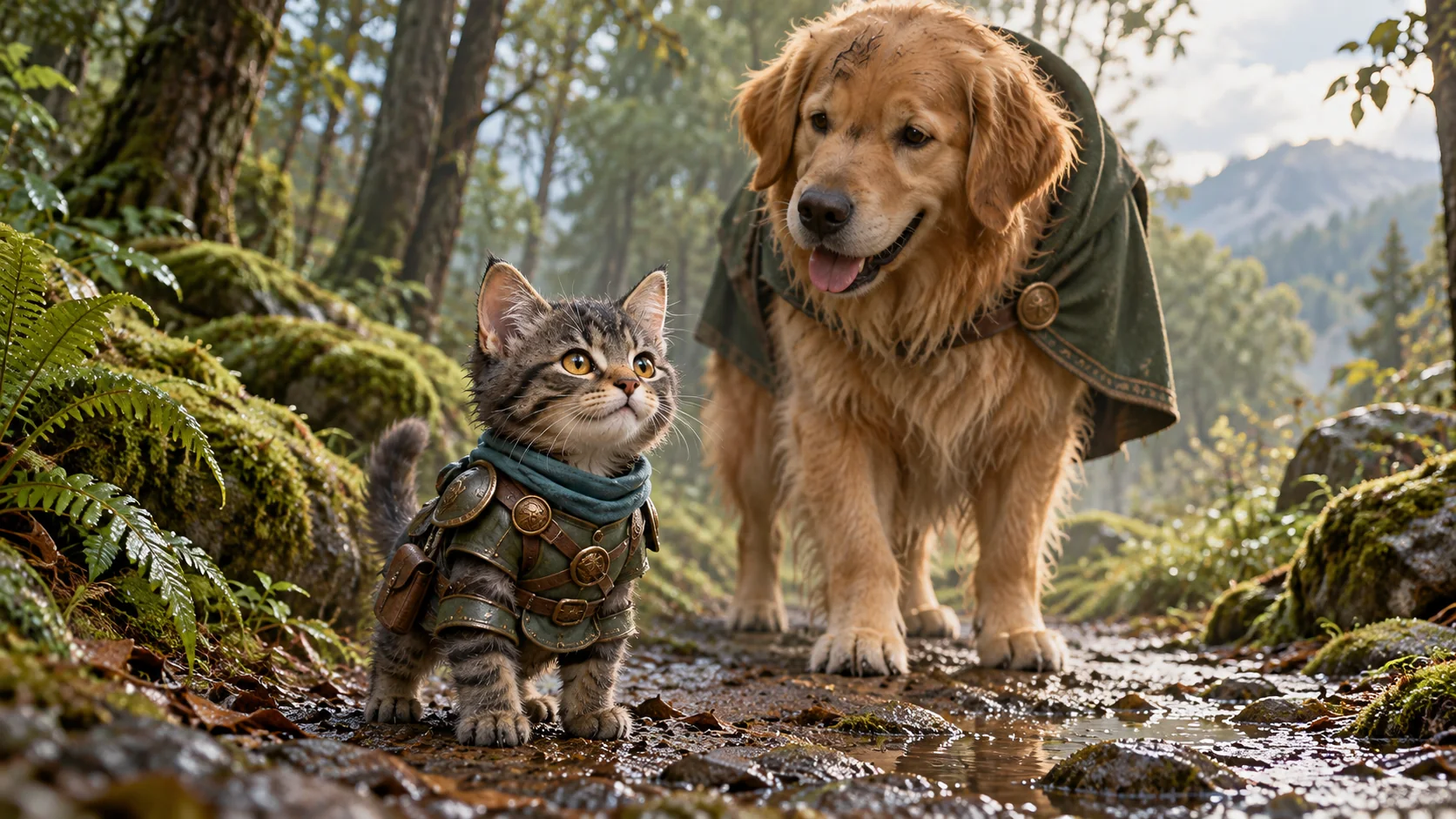
If the scene includes two characters, identify who is large and who is small at the start. Keep their positions clear: “the tiny knight remains on the left side of the table; the tall dog stays behind it.” This reduces accidental swaps and makes a reveal easier to follow.
Design a character that can survive motion
For a repeatable character, choose a few details that stay visible in most frames. A face marking, two-color armor palette, and one prop are often enough. The goal is recognition at phone size, not a paragraph of costume decoration.
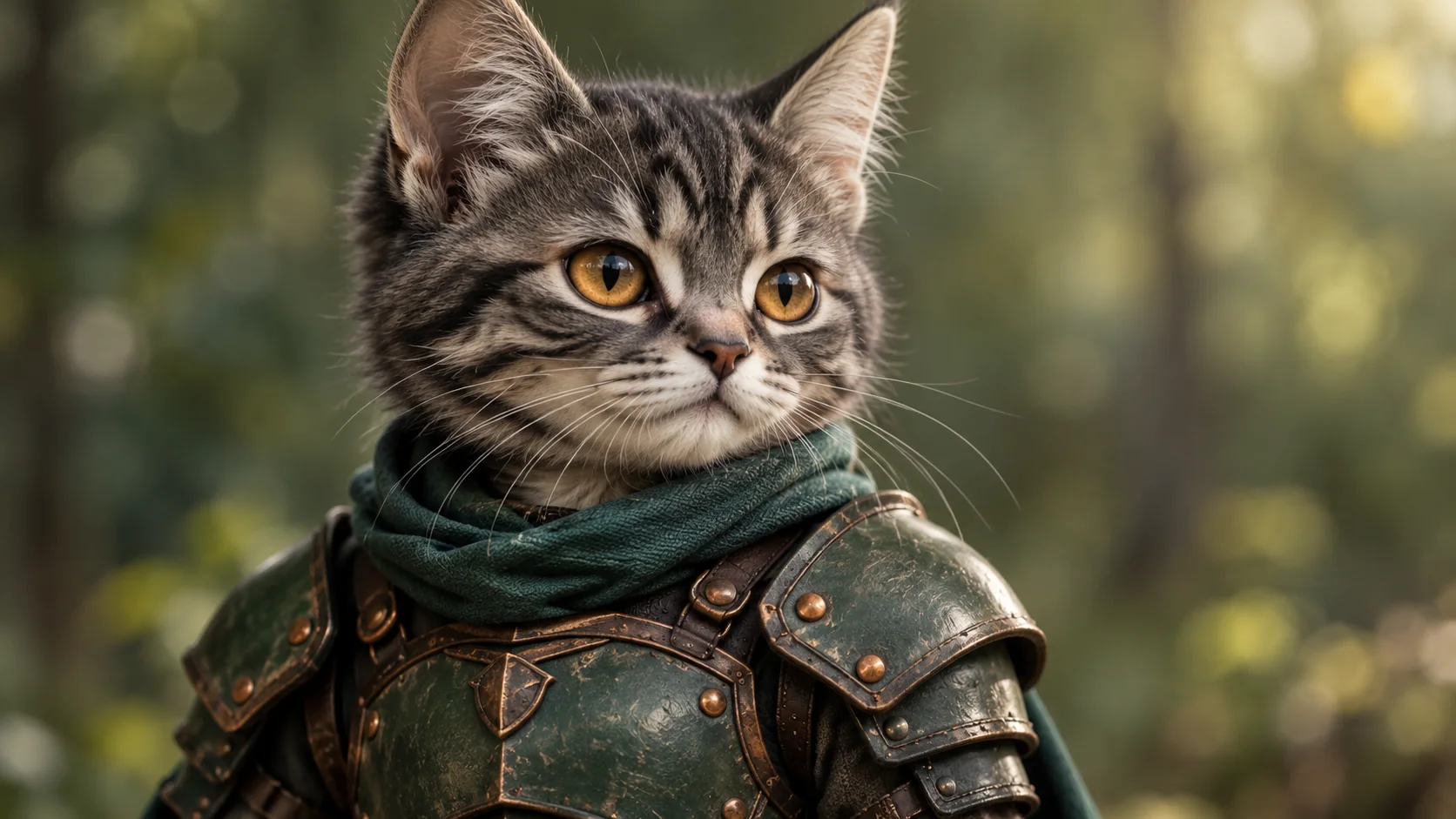
Use a short character sheet:
-
Keep fixed: face shape or fur markings, armor palette, body scale, and one signature prop.
-
Allow to move: scarf ends, a small pennant, a feather, or a soft cape edge.
-
Leave out: tiny engraved writing, many straps, changing emblems, and details the camera cannot hold in focus.
These are creative choices, not guarantees of model behavior. Small accessories may still shift between frames. If you need a character for a series, keep the strongest source image and reuse it as the visual reference when your selected model supports image input. Save the final prompt beside the approved image so you can make deliberate revisions later.
Make the character yours before you animate it. Choose a different silhouette, material, palette, animal, and prop from any recognizable character you have seen. Avoid distinctive costume combinations, logos, creator art, and lifted frames. A new scarf color alone does not make a copied character original.
Pick a source image with room for the action
A useful source image has one clear subject, visible eyes, and enough space around the body to support the planned movement. For a pet, a standing or seated three-quarter pose often shows the face and paws together. For a toy or small original character, leave empty space beside the subject where the protected object can appear.
Use a sharp image with clean light. Heavy blur, dark fur against a black background, and cropped paws make it harder to preserve details. A plain room can work well because it leaves the character legible; set dressing can be added later when the main figure is stable.
Decide on the final aspect ratio before generating the still. A tall social frame needs room above the helmet and below the feet. A wide frame can show a human-sized protector or more of the surrounding room. Keep faces, hands, paws, and important props away from the edges so a second crop does not remove the story.
Only upload images you own or are authorized to use. If the source shows another person, get their permission first. Remove addresses, school names, account screens, and other private information from the photo. A generated character still uses the uploaded image as a reference, so review the input before sending it to a service.
Write the image prompt in layers
A prompt is easier to repair when its parts have separate jobs. Describe the character first, then scale, setting, lighting, framing, and exclusions. Keep the central action still; motion instructions belong in the video prompt.
Start with a plain description:
Create an original tiny knight guardian: a small charcoal tabby kitten with amber
eyes, forest-green leather armor, copper shoulder plates, and a muted teal scarf.
It stands beside a brass lantern on a wooden desk and shields the flame from a
soft breeze. Warm lamplight, visible paws, clear face, medium-wide tabletop view,
natural proportions, one character, no readable text, no logo, no copied costume.
This prompt makes the scale and the protective gesture visible without borrowing a signature costume. If the image has too many details, remove decorative armor language first. Keep the face, colors, and lantern; reduce the straps and background instead of replacing the whole idea.
When you need a second character, describe its role and position rather than adding several new events:
Keep the same original gray tabby knight and outfit. A friendly golden retriever,
much larger than the knight, sits behind it at the garden gate. The dog lowers
its head to look at the lantern while the knight stays in the foreground. Soft
morning light, both faces visible, fixed camera, clear distance between them.
The companion is an optional story detail. If identity changes between the source and the new image, correct the still before animating. A strong video prompt cannot reliably repair a character that is already the wrong size or costume.
Separate the source image from the motion prompt
Image-to-video works from an opening image and asks the model to continue it. Keep the visual brief and the movement brief distinct. The image prompt decides who is present and where they stand. The video prompt decides what changes over time.
A compact motion direction can name the subject, action, pace, camera, and details to preserve:
The tiny knight notices a light gust and places one paw on the lantern handle.
The flame flickers once, then the knight holds its stance. One continuous shot,
slow natural motion, fixed tabletop camera. Preserve the same eyes, fur pattern,
armor colors, scarf, lantern position, and kitten-to-mug scale. No scene cut,
no new character, no added text.
Ask for one action that can be seen clearly. “Turns its head toward the door” is easier to evaluate than “defends the whole room.” If you want a larger protector reveal, make the reveal the single main movement: the camera can ease backward while the guardian stays in place. Avoid combining that with a sword exchange, a running jump, a new location, and a change in lighting.
Keep the camera instruction direct. A fixed view is a good first test because it gives you fewer moving parts. Once the character remains consistent, try one gentle push-in or pullback. Use the same framing in the source prompt and the motion prompt so the camera does not receive conflicting directions.
Step-by-step: Make the tiny knight guardian clip
-
Choose one protective story beat. Write one sentence that names the knight, what it protects, and the movement that shows its intention.
-
Lock the character identity. Pick the face, armor colors, body scale, and one visible prop. Choose a design you can repeat without copying a known creator's art or a branded costume.
-
Create and inspect a still. Use a clear source photo or an original character image. Check the eyes, armor edges, paws, scale anchor, and intended crop before you continue.
-
Open image-to-video with a valid model. The Seedance 2.5 image-to-video workspace opens the site's current image-to-video flow with that model selected. Review the visible options and credit estimate in the interface before you start a generation.
-
Prompt one movement. Keep the camera fixed for a first pass. Ask for one action, a short hold, and the details that must stay unchanged.
-
Review and edit the strongest take. Watch the full clip, inspect the opening and ending, then trim around the clearest protective gesture. Add captions or licensed sound in an editor rather than asking the video model to draw small text.
The prompt below gives the model less to invent:
One continuous shot. The tiny knight reaches the lantern and steadies it with one
paw. The scarf moves slightly in the breeze; the body stays planted. Fixed camera
at table height, warm window light, natural motion. Preserve the same face,
fur pattern, armor, scarf, lantern, and scale. End on a calm protective pose.
The interface controls available to you depend on the model selected at the time. Check the displayed input slots, aspect ratio, duration, and cost before using a source image. Do not assume that every model accepts the same references or settings.
Use motion constraints that are easy to check
Good motion instructions describe visible changes. “The knight puts one paw on the lantern handle” gives you a point to inspect. “Make it more cinematic and emotional” gives the model a mood without saying what should move.
Give the shot a start, action, and settle:
-
The character notices the protected object.
-
It makes one movement that changes the scene.
-
It returns to a stable pose and holds for a moment.
This pacing gives you a final frame you can use in an edit. If the chosen effect depends on a large guardian entering the shot, have the small knight remain in a stable position while the reveal happens. Keep the big character calm and its movement easy to describe.
The short storyboard below uses our original still illustrations to show the sequence from scale anchor to final-frame review. It is a pan-and-zoom presentation of still images, not an AI-generated result or a screen recording from the workspace.
The video is silent and uses player controls. Watch it as a planning reference, then use the numbered steps above to create your own source image and motion prompt.
Inspect five checkpoints before you publish
A clip can look convincing in a thumbnail and still fail when played. Pause at the opening, around one-quarter, the midpoint, three-quarters, and the final frame. Check whether the character, scale, prop, and scene remain readable. Do not judge the clip only by its most dramatic moment.
CheckpointLook forIf it driftsOpeningThe face, costume, and scale anchor match the source image.Simplify the still or choose a crop that shows the full subject.First movementThe knight performs the requested action once.Replace a vague verb with one physical gesture.MidpointThe lantern, mug, or protected object stays in a plausible place.Remove camera travel and reduce nearby moving objects.Three-quarter pointThe setting and lighting still match the opening.Avoid adding a second location or time-of-day change.Final frameThe guardian settles into a clear pose that can be trimmed.Ask for a brief hold at the end and inspect a different take.
For the first revision, write down the first point where the clip goes wrong. If the armor changes halfway through, keep the source image and action fixed while simplifying the costume. If the face changes before any motion begins, return to the source image. Changing the model, framing, clothing, and camera at once makes it difficult to know which choice helped.
Repair common tiny knight guardian failures
Small figures depend on clean contours and stable props. A shield, blade, scarf, or lantern may bend, duplicate, or disappear when it crosses a paw. Simplify the interaction before you add more detail.
What you seeLikely reasonFocused correctionThe knight grows or shrinksThe scene has no fixed size reference, or the camera changes distance.Keep a mug or book in the frame and ask for a fixed camera.Armor changes colorThe prompt includes many materials or colored lights.Limit the armor to two colors and use one light source.The paw fuses with a propThe hand-paw movement is crowded or hidden.Use a larger handle and one simple contact point.The face changesThe source is small, blurred, or heavily styled.Use a sharper face crop and reduce costume or background detail.The action feels weakThe prompt asks for an emotion but no visible movement.Replace “looks brave” with “steps forward once and raises the small shield.”The ending cuts offThe clip ends during movement or the camera keeps traveling.Ask for the character to hold the final pose and trim after the pause.
A useful revision note separates what you change from what you keep:
Observed: the lantern stays clear, but the kitten changes size during the pullback.
Change: keep the same image and use a fixed camera.
Keep: face, fur pattern, armor palette, lantern, light, and action.
Review: opening, midpoint, and final frame at the same screen size.
If the still is good and the motion is weak, change the motion prompt only. If the still is wrong, fix the image first. If the clip is consistent but the ending is awkward, shorten it in an editor. These are different problems and each has a smaller repair.
Finish the clip for a phone screen
Most viewers see a short clip in a narrow feed. Keep the knight and the protected object near the center, with empty space at the top or bottom for captions. Preview the final crop on a phone-sized screen before adding text. Check that platform buttons will not cover the character's face or the story prop.
Add captions after generation so the words stay sharp. Use licensed audio or a track supplied by the platform, and set the volume deliberately. For a before-and-after edit, show the original source briefly, reveal the knight on one clear beat, then hold the final pose long enough to read.
A second format can be a simple photo-led meme or dance transition. The site's photo-to-meme video guide covers photo-based transformation choices, and AI dance from photo covers a different way to animate a source image. Use whichever workflow matches the idea you already have.
Check ownership and originality
A public video can be useful research without being free source material. Do not download another creator's clip, use their artwork as an upload, or copy a recognizable character design into a new prompt. If a named effect caught your attention, check which creator or tool publishes it and follow that publisher's rules. This guide offers a prompt-led route to an original miniature guardian.
Use the same care with your own inputs. Get consent for another person's likeness, confirm that you can use any music or template element, and review the final video for logos, accidental text, or details that suggest an official endorsement. A clear caption can identify the clip as AI-assisted or fan-made when that applies.
The five illustrations and the storyboard video on this page were generated for this article and converted for web delivery. They depict an original tabby, a separate dog companion, a desk scene, and a garden gate. They are editorial illustrations, not generator outputs, not photographs of a real pet, and not artwork from the named effects discussed above.
Follow an adjacent image-to-video workflow
If the character changes into a superhero or dance style, the same still-first approach applies: choose one clear source, create a still, check the identity, and animate one movement. The Nightwing AI photo-to-video guide explains a costume transformation. The Dime Dime Baby AI guide covers a dance sequence. They use different visual hooks, but both help you separate the source image from the motion pass.
For a shorter meme edit, open the AI meme generator. When you are ready to try a source image, return to Meme Video Maker or use the Seedance 2.5 image-to-video workspace. The selected model and visible settings determine which inputs are available.
Frequently asked questions
What is the tiny knight guardian video?
The phrase describes a small knight protecting a larger companion or object. Some video tools use it as the title of a named effect. Other guides use it as a general prompt idea. Check the exact tool you saw if you expect a preset or a specific reference image.
Is Tiny Knight Guardian an official app?
The phrase does not point to one universal application. Public examples include a named video effect and general image-to-video prompt pages. This article focuses on an original character workflow that uses a general image-to-video tool.
Is Tiny Knight Guardian the same as KnightCat?
No. KnightCat is a separate creator-owned character and story. Its creator has published a distinct design and asks others not to repost the artwork without permission. The original character and illustrations in this guide use a different costume, palette, pose, and setting.
How do I keep the tiny knight consistent between frames?
Keep the identity, armor palette, scale cue, prop, and camera steady. Start with a clear image, describe one movement, and compare five points in the clip. If one detail drifts, simplify that detail before changing the rest of the prompt.
What is the best source image for a tiny knight guardian clip?
Use one clear subject with a visible face and enough space for the intended action. Show the paws or hands if they touch a prop. A familiar object in the same frame helps make the miniature scale clear.
Why does a sword or lantern change shape?
Small objects can be difficult to preserve when paws touch them or the camera moves. Use one clear prop, keep the interaction simple, and hold the camera still. If the object still changes, choose a different take or adjust the edit around the cleanest moment.
Can I use my own cat or dog photo?
Yes, when you own the photo or have permission to use it and the selected service permits that upload. Get permission from anyone else shown. Check the service terms before using the output commercially.
Can I post an AI tiny knight video?
You can share a result when you have the needed rights for its inputs, generated material, music, and platform use. Review the full clip, check the crop and text, and label synthetic media when applicable rules require it.
Make an original guardian
Choose one small hero, one visible scale cue, and one protective move. Create the still first, then animate it with a short motion prompt and review the opening, middle, and ending. That process gives you a clip you can assess and revise instead of relying on a phrase to produce the same result every time.
Open Meme Video Maker to compare the available creation modes, or start with the image-to-video workspace with Seedance 2.5 selected. Review the current inputs and settings before you submit your image.