
Add a Pumpkin to Your Photo with AI
Place a pumpkin, jack-o’-lantern, or Halloween decoration into a photo. Describe where it belongs and the style you want, then review your edited image.
The page shows the credit estimate before you submit. Choosing a photo or viewing examples does not start a generation.
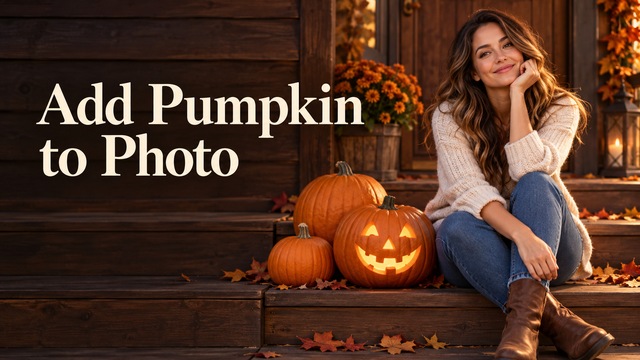 Pumpkin photo edit inspiration
Add a seasonal detail while keeping your scene recognizable.
Upload one photo and describe the pumpkin’s position, size, and look. The image editor uses your note to create a new version of the scene. Small details can change, so inspect faces, pets, and background features before sharing the result.
Add a pumpkin to your photo
Upload one image, describe the edit, then review the result before downloading.
Your photo is uploaded to a public URL so the configured image provider can edit it. Anyone who obtains the URL may be able to view it. Only upload photos you have permission to use. See our Privacy Policy.
One 1K image edit · 5 credits. No credits are used until you submit.
Pumpkin photo edit inspiration
These authorized reference images show possible directions. They come from the source page and are not results made by this generator.
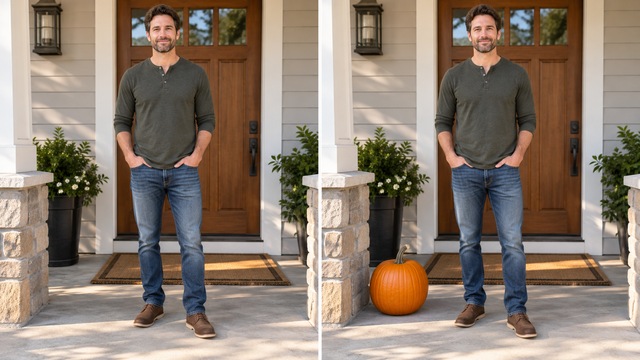
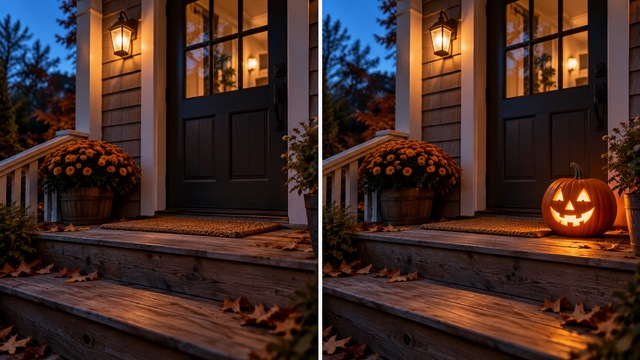
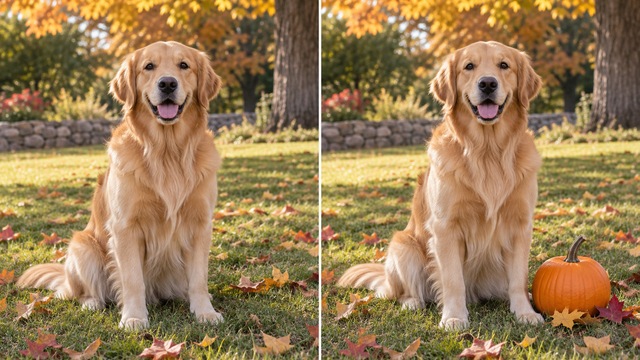
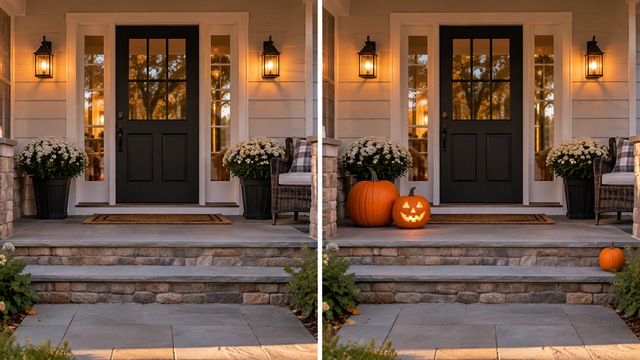
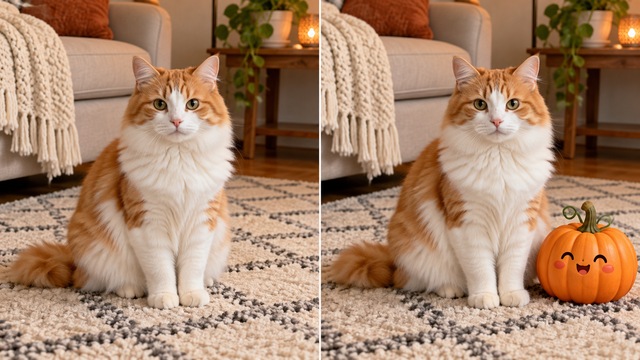
How to add a pumpkin to a photo
- Upload one photo. Choose a clear JPG, PNG, or WebP image under 10 MB.
- Describe the edit. Say how many pumpkins to add, where to place them, and whether they should look realistic, glowing, or illustrated.
- Review your image. Check the 5-credit estimate, confirm you have permission to use the photo, and submit when ready.
Add Pumpkin to Photo FAQ
How many photos can I edit at once?
Upload one photo and create one edited image per task. You can start another edit after reviewing the result.
Can I choose where the pumpkin appears?
Yes. Describe the number, placement, size, and style in the optional instruction box. Mention a surface or side of the main subject for clearer placement.
Will the edit keep the rest of my photo unchanged?
The image model aims to keep the original scene recognizable, but fine details can change. Review faces, pets, clothing, and background lines before using the result.
How many credits does an edit use?
One image edit currently uses 5 credits. The same estimate appears beside the create button before you submit.
What photo formats and aspect ratios are supported?
Upload one JPG, PNG, or WebP image up to 10 MB. Choose Auto to follow the source framing, or select a square, landscape, or portrait ratio.
Can I use a photo of a person or pet?
Yes, if you have the right to use the photo and any required permission from the people shown. A clear image with visible space for the pumpkin gives the editor more context.
How is my uploaded photo handled?
Your photo is uploaded to a public URL so the configured image provider can edit it. Anyone who obtains that URL may be able to view the image. Only upload a photo you are permitted to use, and review the Privacy Policy for more information.